
Section 1: Integrate Neon CRM in your Double the Donation Matching account
Section 2: Add Double the Donation Matching to your Neon CRM donation forms
NeonCRM - Double the Donation FAQs
Double the Donation helps nonprofits and schools grow revenue across workplace giving programs, including matching gifts, volunteer incentives, payroll giving, and corporate sponsorship opportunities. Our workplace giving automation platform identifies eligible opportunities and drives more submissions to completion.
You’ll need a Double the Donation account to activate this integration. Not a Double the Donation client? Schedule a demo at https://doublethedonation.com/get-a-demo/
Section 1: Integrate Neon CRM in your Double the Donation Matching account
This section of the integration guide is intended to help organizations establish a direct link between Double the Donation Matching and Neon CRM. Once a direct link is established, new donation records in Neon CRM will automatically flow into Double the Donation. In the Double the Donation Matching platform, donations will enter automated email streams to drive the employer matching process to completion. In section 2, we will detail how to add the matching module to your Neon CRM donation forms.
Step 1 — Gather Required Credentials
You will need:
-
Neon CRM Organization ID
-
Neon CRM API Key
If you need help finding these, click here.
Important: The API key must belong to a Neon CRM user with User or Administrator permissions.
Step 2 — Activate the Neon CRM Integration in Double the Donation
-
Log in to Double the Donation Matching.
-
Navigate to Integrations → Browse.
-
Search for NeonCRM.
-
Click Activate Integration.
-
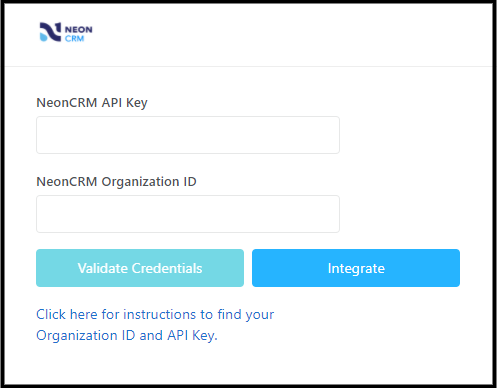
Enter your Neon CRM API Key and Organization ID.
-
Click Integrate.
Result
-
Donation and donor data now flows automatically from Neon CRM into Double the Donation Matching.
-
New donations enter automated matching gift outreach streams.
Section 2: Add Double the Donation Matching to your Neon CRM donation forms
Step 3 — Open Global Settings in Neon CRM
-
Log in to Neon CRM.
-
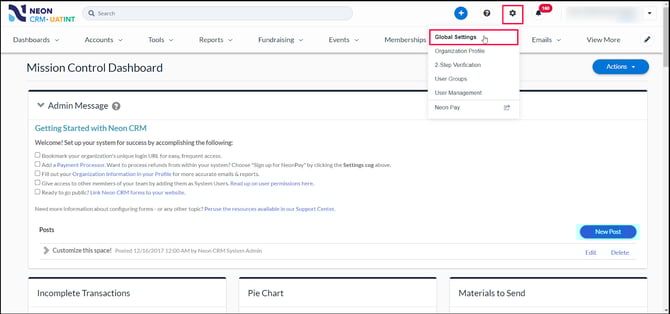
From the Mission Control Dashboard, navigate to Global Settings.
Step 4 — Navigate to the Double the Donation Integration
Inside Global Settings:
-
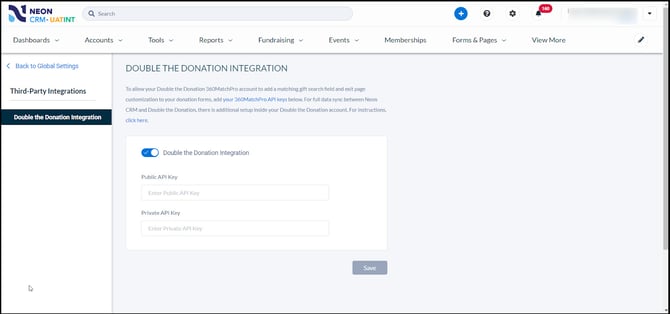
Go to Third-Party Integrations → Double the Donation
Step 5 — Complete Integration Setup
-
Enter your Double the Donation Public API Key and Private API Key.
- Go to Account Profile Dropdown → API Keys
-
Save the settings.
Links on this screen point to:
Step 6 — Add the Search Field to Donation Forms
Once connected:
-
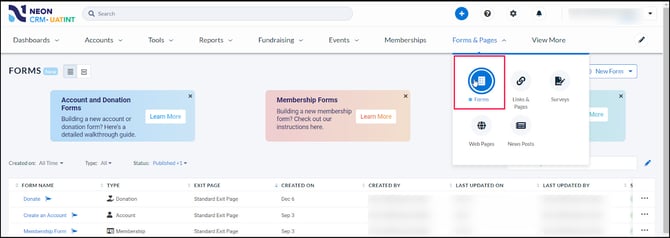
Navigate to Forms & Pages → Forms.
-
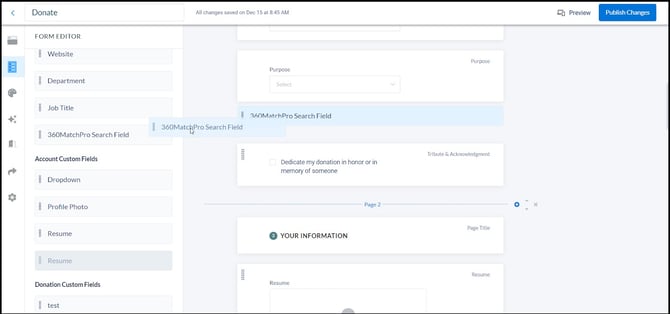
Open a donation form in the Form Editor.
-
Drag and drop the Double the Donation Search Field onto the form.
-
Customize the field title and description (optional).
Result
-
The employer search field appears wherever you place it on the form.
-
The matching gift plugin is automatically added to the confirmation page—no extra setup required.
Integration Complete: What Happens Next
Once enabled:
-
All Neon CRM donations flow into Double the Donation Matching
-
Donors see the employer search during donation
-
The matching gift plugin appears on the confirmation page
NeonCRM - Double the Donation FAQs
Q: I don’t have a Double the Donation account. How do I get one?
A: Visit the Double the Donation demo request page to schedule a demo. Mention that you use Neon CRM in your demo request form.
Q: My Double the Donation integration isn't working. What do I do?
A: Click "Validate Credentials" (seen in step #1 of the above Double the Donation Matching integration guide). This will check to see that your Organization ID and API Key are a valid match. If these items are not valid, follow the steps in this guide to be sure you have entered the correct information.
Q: My donations appear in Neon CRM but not in Double the Donation Matching. How can I fix this?
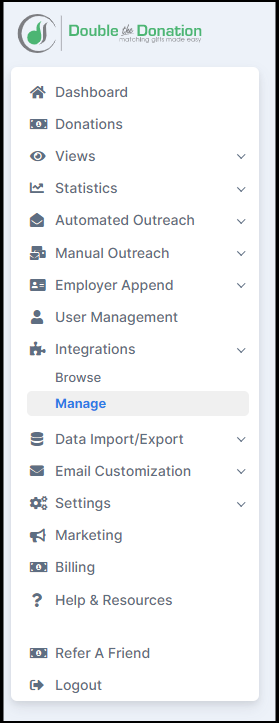
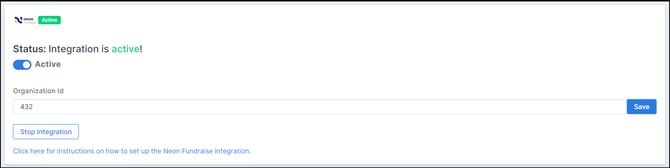
A: Check the donation stream in your matching module in a few minutes. Neon CRM pushes each new donation to Double the Donation Matching shortly after it's created. Then, the matching module processes the donation. This end-to-end synchronization usually takes a few seconds. If the donation does not appear in Double the Donation Matching after a few minutes, make sure that the integration is still operational. You can do this by clicking the "Check Status" button in Double the Donation. You can find this under the Neon CRM integration in the "Integrations" ---> "Manage" tab, as shown below.
Note: If the connection is lost, the "Check Status" button will report the exact issue and provide feedback for reestablishing the connection.
Q: Why isn't the Neon CRM company field being pulled into Double the Donation Matching?
A: The Neon CRM company field is stored as free-form text. Accurately mapping this data to a specific company in Double the Donation Matching often results in costly inaccuracies. For example, a Neon CRM company value of "home loans" can be mapped to any of the following Double the Donation Matching companies:
-
Federal Home Loan Bank
-
Embrace Home Loans
-
Evergreen Home Loans
To ensure accuracy, Double the Donation Matching currently relies on automated outreach to verify the donor's employer. Donors responding to automated outreach will use the Double the Donation autocomplete field that automatically maps the record to the correct company within the database, ensuring that donors receive the correct next steps associated with their actual employer's program.
Q: Which donation fields will be imported into Double the Donation Matching?
A: The following will be imported into Double the Donation Matching:
-
Neon CRM Donation ID
-
Full Name (if the donor is not anonymous)
-
Donation Amount (if the amount is not anonymous)
-
Email Address
-
Phone Number
-
Campaign (when present)
Q: Using the Neon CRM integration option, will Double the Donation Matching push data into Neon CRM?
A: No. Currently, donations only flow from Neon CRM into Double the Donation Matching for additional processing.
Q: What happens if a donation is deleted, refunded, or canceled in Neon CRM?
A: The donation will automatically be deleted from Double the Donation Matching.
Q: What types of donations flow into Double the Donation Matching?
A: Neon CRM supports Individual accounts and Organization accounts. All donations will be pushed into Double the Donation, but only contact information (email and phone) for Individual accounts will be pulled into the matching module.
Q: I am noticing that donor information (first name, last name, and email) is not passing from Neon CRM to Double the Donation Matching. Why is this happening?
A: In Neon CRM, an API key is tied to a system user account and inherits the permission level set for the account. Make sure that the API key used for the Double the Donation integration is associated with a user account with the permission level ‘User’ or ‘Administrator.’
Q: Do membership fees pass over to Double the Donation Matching?
A: No, membership fees do not pass over.
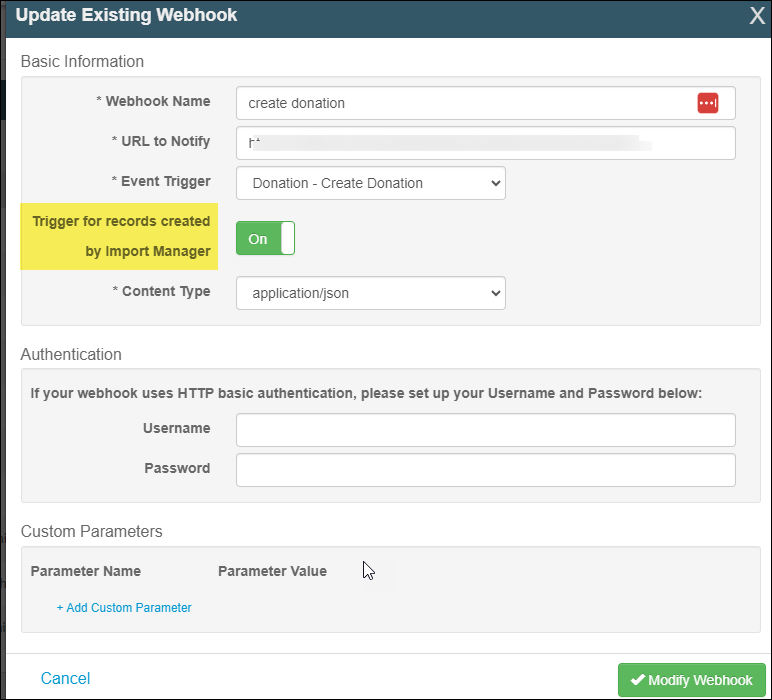
Q: If I use the Neon CRM Import Manager to bulk upload offline gifts, how can I ensure those gifts pass over to Double the Donation immediately?
A: If you use Neon CRM's Import Manager, we recommend that you update your webhook settings following these steps within NeonCRM:
Q: How can I learn more about Neon CRM?
A: Neon CRM provides a fantastic support center here!
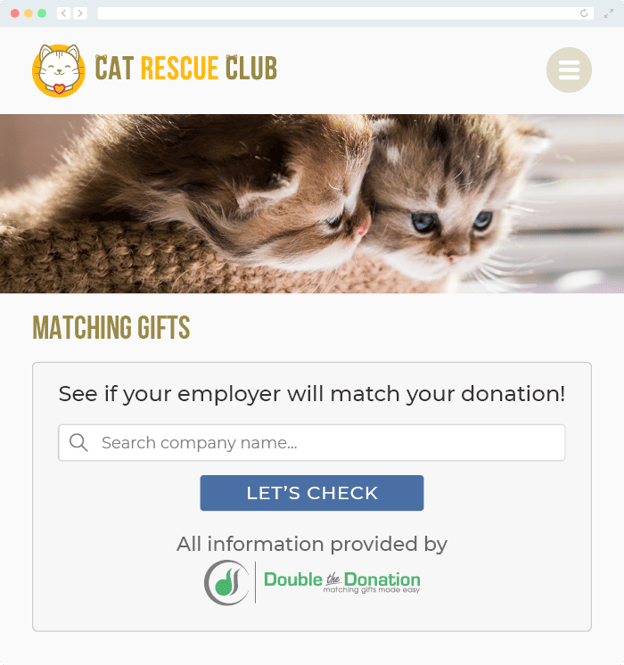
Q: Where can I embed Double the Donation's matching gift search plugin?
A: We recommend creating a dedicated matching gift page on your website. This page will help all website visitors, not just those on your donation form, understand matching gift programs and easily find their company’s matching gift guidelines and forms.
To embed the matching gift search tool, locate your embed code from your matching module. Full instructions are available here.
Q: Where can I learn more about the Double the Donation Matching and Neon CRM integration?
A: Navigate to our partner landing page to learn how Double the Donation Matching and Neon CRM can increase your matching gift revenue!
Q: What types of workplace giving programs does Double the Donation support?
A: Yes. Double the Donation helps nonprofits and schools maximize workplace giving by supporting a range of employer-sponsored programs, including:
- Matching gifts
- Volunteer grants and paid volunteer time off (VTO)
- Payroll giving
- Corporate sponsorship opportunities
To learn more:
- Current clients can visit our Knowledge Base or connect directly with our Support team to explore how to make the most of our full suite of products.
- To see how our partnerships and integrations help organizations unlock more workplace giving, check out our workplace giving integrations page.