
Step #1: Complete the CNAME Setup
Step #2: Complete the DMARC Setup
When you create your account, we default to sending emails from a Double the Donation email address. You can give Double the Donation's platform permission to send emails on your behalf by adding a few new records in your DNS.
If you are sending emails from multiple Double the Donation modules, the following steps only need to be completed once. These records can be accessed from any module by navigating to Email Customization --> Sending.
Step #1: Complete the CNAME Setup
This step adds three CNAME records to Azure DNS. Follow all steps precisely—DNS entries must match exactly what is provided in Double the Donation.
Navigate to Azure DNS Zone
-
Log into Microsoft Azure.
-
On the Dashboard, select the domain you want to configure.
-
Under Settings, click DNS zone.
-
Select + Record set to add a new DNS record.
Add the First CNAME Record
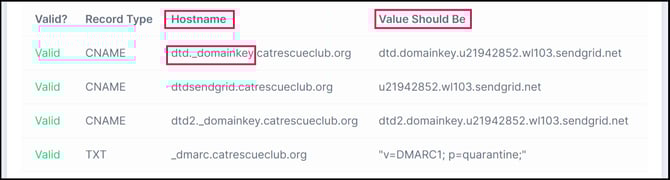
Retrieve the first CNAME entry from Double the Donation: Email Customization → Sending → DNS Setup Table
Then, in Azure:
-
Name
-
Paste the Hostname from Double the Donation
-
Copy only the text before
.yourdomain.org -
Example from page 2:
-
Full hostname:
dtd._domainkey.yournonprofit.org -
Enter only:
dtd._domainkey
-
-
-
Alias
-
Paste the Value Should Be exactly as shown in Double the Donation.
-
-
TTL
-
Set to 1
-
Set TTL unit to Hour
-
-
Click OK.
Add the Remaining Two CNAME Records
Repeat the same steps for all three CNAMEs provided in your Double the Donation account.
CNAMEs can take 48 hours to propagate. That means after you complete the above steps, you may need to wait 24-48 hours before you log back into the your Double the Donation account and can successfully click on the "Validate Domain" button.
Step #2: Complete the DMARC Setup
Check for Existing DMARC Record
-
In your DNS Settings, review the list of records already added.
If a DMARC TXT record already exists, you’re done! Double the Donation will automatically identify the DMARC record, and you can skip to validation.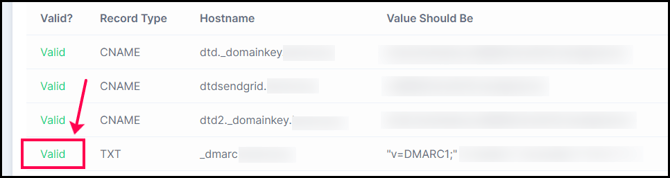
-
If No DMARC TXT Record Exists
Proceed with the following steps to add a DMARC TXT record.
Adding a DMARC TXT Record
1. In the example below, all DNS record types are displayed together. Your DNS provider may show each record type (A, CNAME, TXT, etc.) in a separate section; if this is the case, find the section for TXT / DMARC records. Add a new record by clicking Add (Add Record, Create new record, etc).

Please note: each DNS provider has a unique layout and interface. These instructions give a general overview of the steps to take within your DNS provider; however, the navigation and steps may be slightly different.
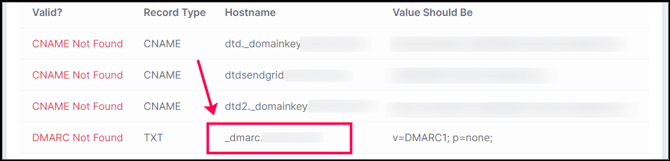
2. In the DNS Setup Table in your Double the Donation account, there is 1 TXT record. Copy the value from the Hostname column, switch to the browser tab containing your DNS settings, and paste it into the corresponding field in your DNS provider account. Some DNS providers will refer to Hostnames as Aliases.
3. Switch back to the Double the Donation browser tab. For the same TXT record, copy the value in the Value Should Be column. Back in your DNS browser window, to paste into the corresponding field in your DNS provider account.
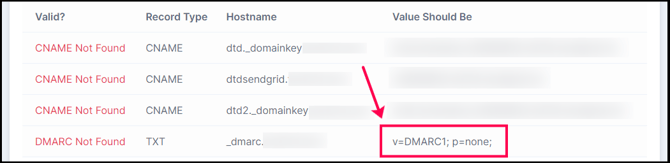
Please note: The sample value provided for your DMARC TXT record is very simple. Your IT team may want to modify it slightly. This value is sufficient for the purposes of sending Double the Donation emails through both of the modules.
4. Save your changes in your DNS provider account.
Troubleshooting CNAME records
If your DNS records have not propagated or are still showing a CNAME Not Found error, try the following:
-
Wait 24-48 hours for propagation.
-
Ensure all records are added: If only some records are valid, check that all three CNAME records are present.
-
Check for typos: Ensure that CNAME records are copied and pasted directly from your Double the Donation account to avoid errors. Avoid manually typing from screenshots, which can lead to typos.
-
Correct Domain: Ensure CNAMEs are added to the correct domain (e.g., if your Double the Donation account uses matchinggifts@catrescueclub.org, the CNAME should not be added to the catrescueclub.com domain).
- Refer to the instructions provided by your individual DNS service. Instructions for service providers such as GoDaddy, Network Solutions, and DigitalOcean require Hostnames/Aliases to be entered without your organization’s domain included (for example dtd._domainkey.catrescueclub.org will be entered as dtd._domainkey for these providers).
- If you use a custom nameserver, in place of the default nameserver of your provider, your CNAME records need to be entered into the account associated with the custom nameserver.
If these scenarios do not apply to your CNAME records, please reach out to support@doublethedonation.com to troubleshoot to find a solution.