
Understanding Reconciliation Statuses
How to Review and Reconcile Records
What Happens When a Record is Reconciled?
Once you upload a disbursement report into Double the Donation’s Gift Administration feature, the system automatically runs matching algorithms to reconcile imported records with a gift type of “Matching Gift” against existing donation records in your Double the Donation Matching account.
Understanding Reconciliation Statuses
After your disbursement file is uploaded, Double the Donation compares each imported matching gift entry against your existing donation records using core identification criteria:
-
Donor Name
-
Donor Email Address
-
Transaction Date
-
Employer / Company Name
-
Donation Amount
Each imported record will display one of four automated reconciliation statuses:
|
Status |
Description & Matching Criteria |
Action |
|
Yes |
Exact Match: The imported entry matches an existing record across all core criteria. |
Click Reconcile Records to accept or search manually. |
|
Partial |
Partial Match: The entry matches some key criteria, but has a mismatch in another field. |
Review discrepancies, then click Reconcile Records to accept or search manually. |
|
Multiple Records |
Multiple Matches: The system identified more than one existing record that aligns with the imported entry. |
Inspect matching criteria across candidate records to select the correct match. Choose to reconcile a record or search manually. |
|
Not Found |
No Match Found: No existing record in your Double the Donation Matching module matches the imported entry. |
Use the Search DTD Database feature to locate the record manually, or leave as unmatched. |
|
Not Applicable |
Ineligible for Pairing: Matching criteria do not apply. Pairing and reconciliation criteria only apply to Matching Gift records. |
No action needed |
How to Review and Reconcile Records
-
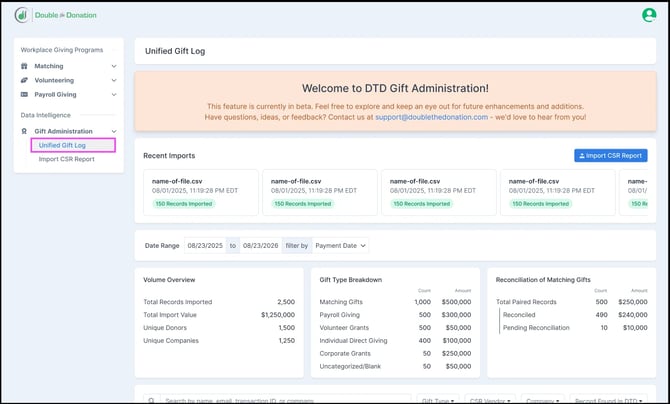
Navigate to Gift Administration > Unified Gift Log.
-
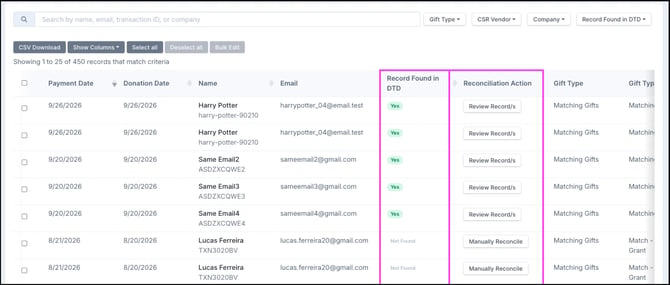
Review the automated status assigned to each uploaded disbursement line item with a gift type of “Matching Gifts”. Look at the Record Found in DTD column to see the record's status, and check the Reconciliation Action column to review the records and available actions.
-
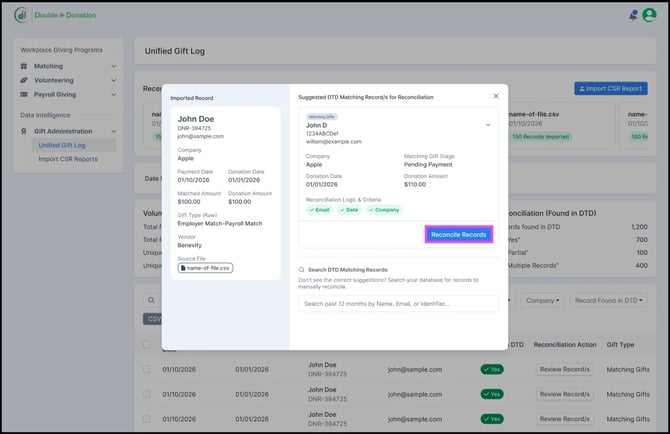
Under the Reconciliation Action column, click Review Records or Manually Reconcile to select your next step:
-
To accept a suggested match: Click Reconcile Records.
-
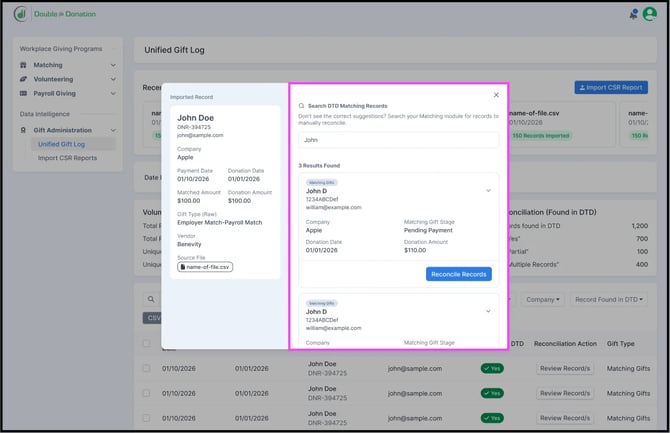
To manually locate a record: Search DTD’s Database if the record is marked as Not Found or if the automated match is incorrect. You can search by donor name, email address, or transaction ID to manually pair records.
-
Search Timeframe: To keep your results relevant, the search database only pulls Matching Gift records from the last 12 months.
What Happens When a Record is Reconciled?
When you reconcile an imported disbursement record with an existing donation:
-
The Matching Gift Stage on the existing donation record automatically updates to Match Complete.
Updating a donation record's stage to Match Complete will automatically trigger a "Thank You" automated email stream to the donor (if this email stream is enabled in your account settings). Reconciling records directly influences automated communications in real time.
-
If the corresponding donation record has no Matched Amount value, the donation amount from your imported disbursement file populates into the Matched Amount field on the donation record.
-
If the corresponding donation record has no Company value, the company name from your imported disbursement file populates into the Company field on the donation record.
Frequently Asked Questions
Q: Can I undo a reconciliation once a record has been reconciled?
A: Undoing the reconciliation will remove the pairing between the imported CSR record and the matching donation in Gift Administration. However, it will not automatically revert the Matching Gift Stage, Company, or Matched Amount fields. To edit or clear those fields, you must manually update them on the Donations page.
For step-by-step instructions on modifying a record's matching gift stage, please refer to our guide on Updating the Status of a Donor.
Important Note on Automated Emails: Updating a donor's matching gift stage manually may automatically trigger automated email communications. For instance, reverting a donor's status back to Waiting for Donor will re-enroll them in the Match Eligible automated email stream (if enabled in your account settings).
Q: Why might the matched amount differ from the original donation amount?
A: Discrepancies between the original donation amount and the final matched amount can occur for several common reasons:
-
Different Corporate Match Ratios: Employers often offer matching gift ratios other than 1:1, such as matching a gift at 0.5:1, 2:1, or 3:1 of the employee's original contribution.
-
Company Match Caps: A donor's employer may enforce an annual individual matching cap or a maximum match limit per gift (e.g., matching up to $500 of a $1,000 donation).
-
Partial Match Submissions: The donor may have opted to submit only a portion of their initial donation for a corporate match, or combined multiple donations into a single submitted request.
Q: Why would a record show as a "Partial" match?
A: Partial matches typically occur due to discrepancies between the donation record and the report:
-
Email Mismatch: The donor used a personal email for their donation, but the CSR vendor report lists their corporate email address.
-
Amount Differences: The disbursed corporate match amount differs from the original donation (e.g., a 2:1 match ratio or administrative processing fees deducted by the CSR vendor).
Always review the individual fields before accepting the reconciliation.
Q: What should I do if a record status is "Not Found"?
A: A Not Found status indicates that the system could not automatically pair the imported disbursement record with an existing donation in your database. This typically occurs due to one of the following reasons:
-
Unintegrated Donation Source: The underlying donation was processed through an unintegrated donation form, offline source, or external system that did not sync into your Double the Donation Matching module. Review our integration guides to ensure all of your platforms are connected to Double the Donation
-
Direct CSR Portal Donation: The employee made their contribution directly through their employer’s Corporate Social Responsibility (CSR) portal rather than through your standard donation channels.
-
Not Enough Data: Double the Donation lacks necessary information to confidently suggest a match between a disbursement record and a donation record in the Matching module.