
Step-by-Step: Integrate CRM Advance in your Double the Donation Matching
Step-by-Step: Integrate Double the Donation Matching in your CRM Advance online donation pages
CRM Advance - Double the Donation FAQsDouble the Donation helps nonprofits and schools grow revenue across workplace giving programs, including matching gifts, volunteer incentives, payroll giving, and corporate sponsorship opportunities. Our workplace giving automation platform identifies eligible opportunities and drives more submissions to completion.
You’ll need a Double the Donation account to activate this integration. Not a Double the Donation client? Schedule a demo at https://doublethedonation.com/get-a-demo/
Note: You will need to configure an application for Double the Donation within Ellucian first. We will outline those steps below. If you have trouble with any of the Ellucian set-up, please contact your Ellucian representative.
Step-by-Step: Integrate CRM Advance in your Double the Donation Matching
Step 1 — Log In to Ellucian Ethos
Log in to your Ellucian Ethos environment.
Step 2 — Create a New Ethos Application
-
Select Create New Application.
-
Choose Configure REST API Proxy when prompted.
-
Click Continue.


Step 3 — Add Application Details
-
Application name:
Double the Donation -
Description: (optional)
-
Click Next.

Step 4 — Select an Authoritative Source
-
Select CRM Advance as the application (already configured in Ethos).
-
Enter CRM Advance user credentials.
-
Select contributions as the resource.
-
Click Add, then Next.

Note: The user whose CRM Advance user/password you add should be able to view all of the following:
- Contributions
- Designations
- Statuses
- Campaigns
- People
- Business relationships types
- Alternate ID types
- Donor association types
- Addresses
- Organization
- Business relationships
- Matching-gift-expectancies
If you’re having trouble with this step, please check the error log under the reports menu option. It’s likely that you do not have the correct credentials.

Step 5 — Add Subscriptions
-
Click Add Subscriptions.
-
Type contributions and click Add.
-
Click Next.

You should see a success message on step 4 like in the image below.

Step 6 — Confirm Change Notifications
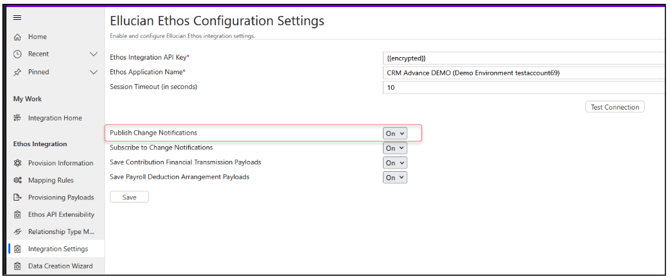
Ensure CRM Advance is publishing change notifications and that the new app is subscribed.
Step 7 — Activate the Integration in Double the Donation
-
Log in to Double the Donation Matching.
-
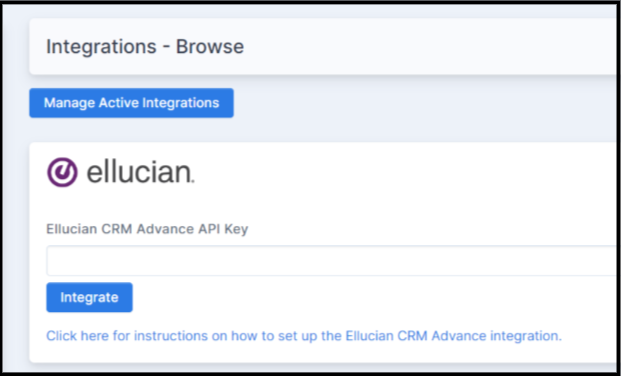
Navigate to Integrations → Browse.
-
Search for Ellucian CRM Advance.
-
Click Activate Integration.
Step 8 — Enter the Ellucian API Key
-
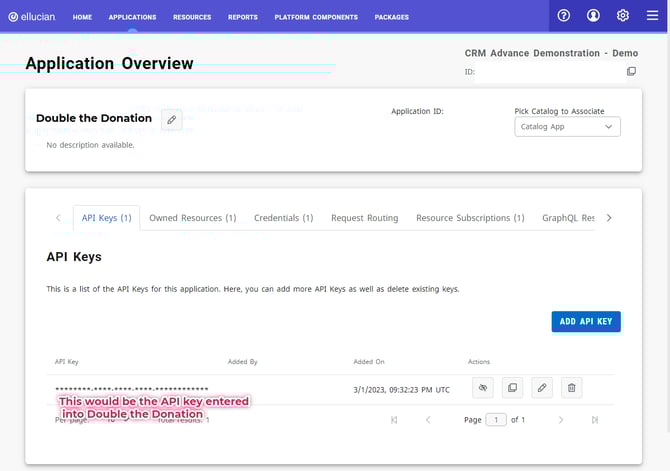
Under the Ellucian integration card, paste the Ellucian API Key created in Ethos.
-
Click Integrate.
-
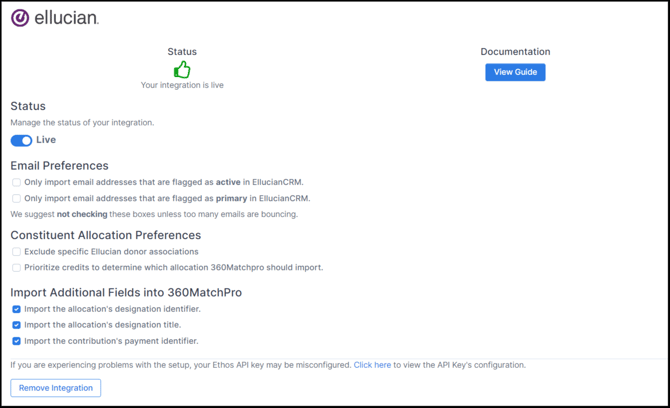
Set the status to Live.
Note: If there are types of designated records you'd like to exclude from entering Double the Donation Matching, please contact your Client Success Specialist for the next steps
Step-by-Step: Integrate Double the Donation Matching in your CRM Advance online donation pages
Step 1 — Open CRM Advance Settings
Log in to CRM Advance, then navigate to Settings.
Step 2 — Locate Double the Donation Settings
Find the section labeled Double the Donation Settings.
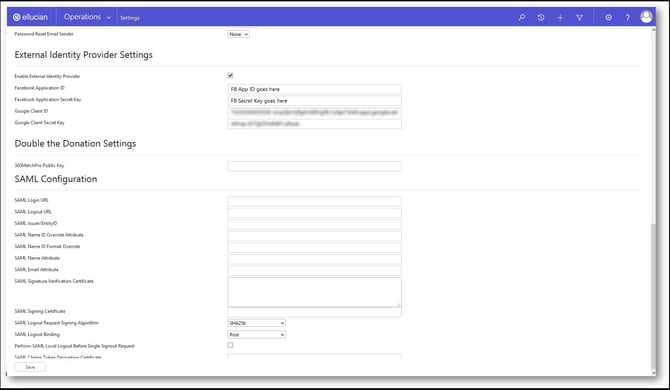
Step 3 — Enter Your Public Key
-
Paste your Double the Donation Matching public key.
-
Click Save.
Result:
-
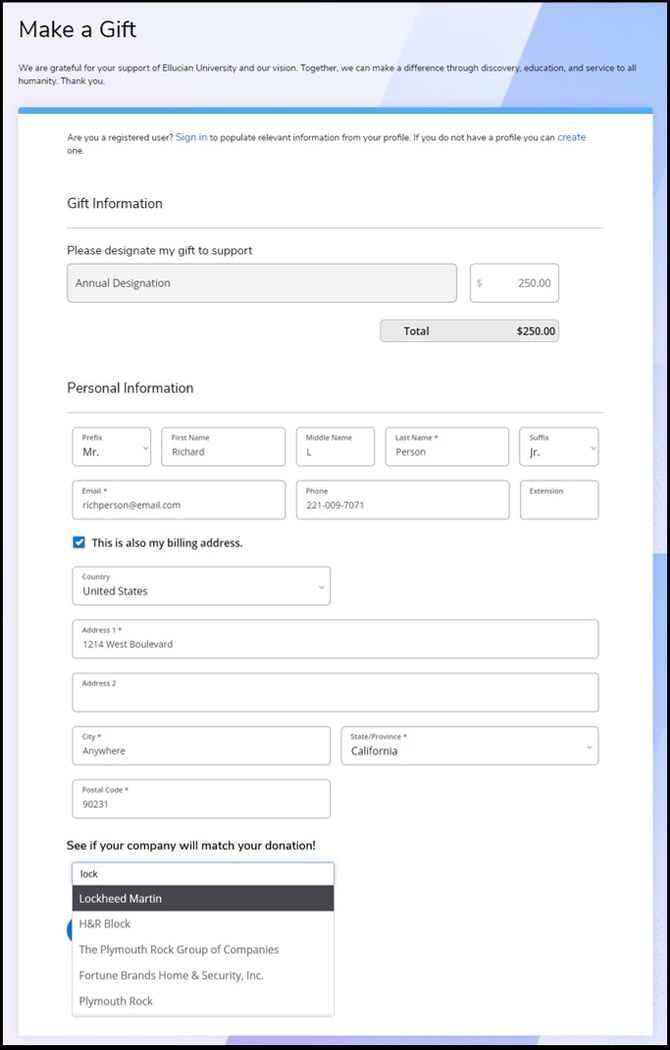
Employer company-name search appears on the donation form
-
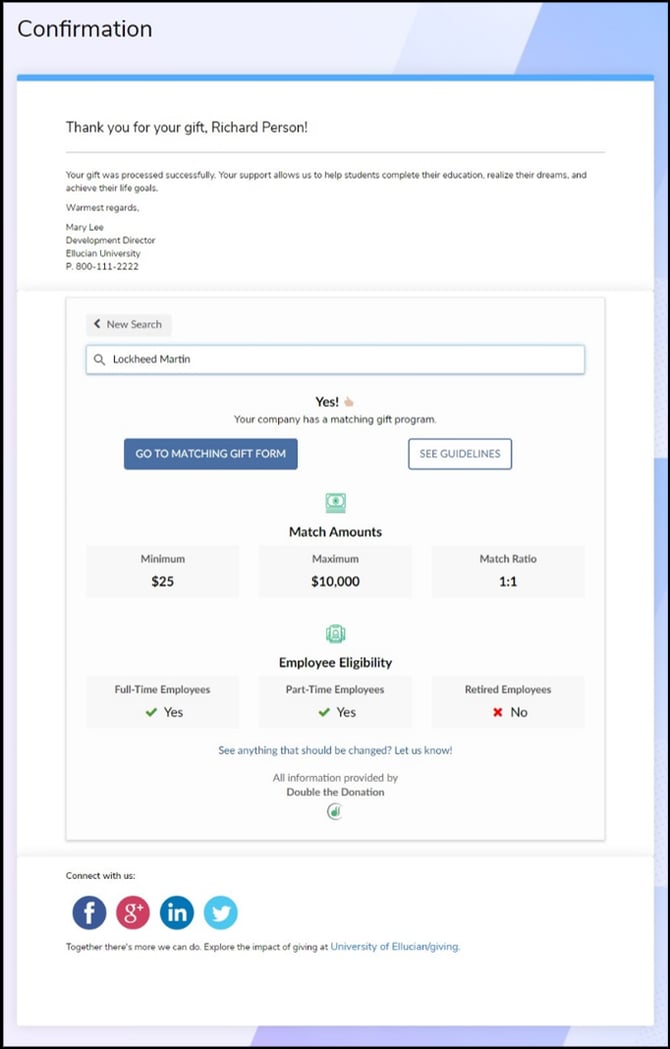
Matching-gift information appears on the confirmation page
CRM Advance - Double the Donation FAQs
Q: Which donor name does Double the Donation Matching pull over?
A. Our system pulls the name with a preference of "primary" within the Ellucian system. This means that former names or any other name variations associated with the gift record should not flow into Double the Donation Matching.
Q: Can we exclude certain Donor Associations (example: In Honor of/In Memory of) from flowing into Double the Donation Matching?
A. Yes, to do this navigate to Integrations > Manage in your Double the Donation account. Once there, within your Ellucian integration settings, you'll see a box that is labeled "Exclude Specific Ellucian Donor Associations" Once you click this, you'll see a hyperlink appear (shown below) that allows you to preview the specific donor association types that Double the Donation has access to.

From there, you can enter the association IDs you would like to exclude into the field. For example, you may choose to exclude donor association types such as "In Honor of", "In Memory of", or "In Name Of."
Q: We don't use CRM Advance online donation forms. Will the integration still work?
A: Yes. The first set of instructions in this support article ("Step-by-Step: Integrate CRM Advance in your Double the Donation Matching account") is required to set up the flow of data between CRM Advance and Double the Donation Matching. The second set of instructions ("Step-by-Step: Integrate Double the Donation Matching in your CRM Advance online donation pages") is optional. However, if your institution uses CRM Advance CX webpages, we highly recommend completing the second set of instructions to place the company name search field within the donor experience. This implementation leads to higher usage and greater accuracy in your matching gift results.
Q: Gift records aren't appearing in Double the Donation Matching. What could be the issue?
A: The Double the Donation Matching integration relies on the Ellucian Ethos Message Queue API. Your API key should subscribe to change notifications associated with Ellucian CRM Advance Contributions. If the matching module does not import your donations, it’s possible that your API key is not configured appropriately. All donations should be posted in the Ellucian system to ensure data flows into Double the Donation.
FAQ: You can view your API configuration by navigating to Integrations --> Manage --> Select "Click Here" to view the API Key's configuration. We recommend reaching out to your Ellucian representative for assistance with configuring your API key.

Q: What happens after the integration is activated?
A: Double the Donation Matching queries Ellucian’s message queue API every minute to see if there are any new contributions and/or changes to existing contributions. If the queue is not empty, the contribution will be imported into the matching module for additional processing.
Q: What type of contribution records are imported into Double the Donation Matching?
A: Double the Donation Matching imports contributions that are designated as “gifts.” All pledges will be excluded.
Q: Does Double the Donation match import contributions from organizations?
A: No. A contribution is imported into Double the Donation Matching if a donor is categorized as a person only, not an organization.
Q: If a donor has multiple email addresses, which one is imported into Double the Donation Matching?
A: From most important to least important, Double the Donation Matching prioritizes email addresses based on the following criteria:
-
The address is flagged as active,
-
The address has a primary preference,
-
The address is categorized as personal.
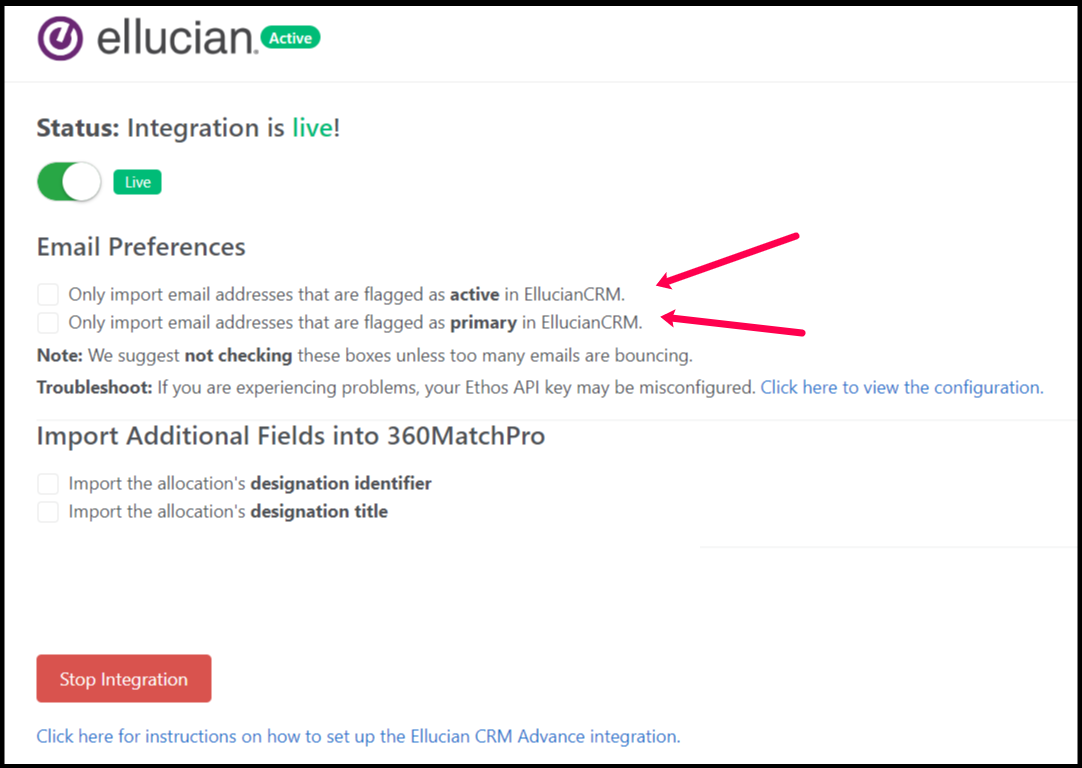
If you'd prefer to limit the integration to only import Active or Primary email addresses, please check one of the boxes under Email Preferences within Double the Donation Matching when configuring your integration:
Q: Can I customize the integration based on Constituent Allocation Preferences?
A: Yes! You can customize the integration based on Constituent Allocation Preferences by navigating to Integrations --> Manage --> Constituent Allocation Preferences.

Q: Where can I embed Double the Donation's matching gift search plugin?
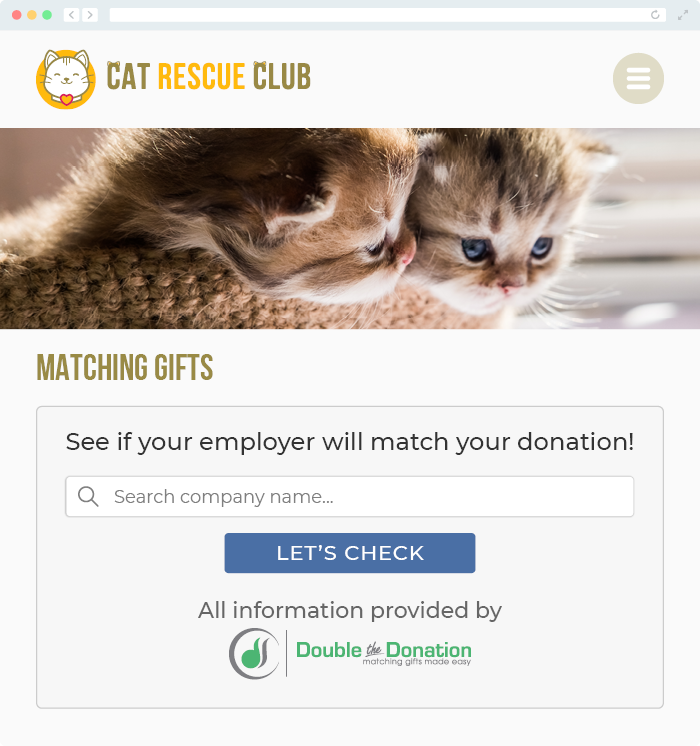
A: We recommend creating a dedicated matching gift page on your website. This page will help all website visitors, not just those on your donation form, understand matching gift programs and easily find their company’s matching gift guidelines and forms.
To embed the matching gift search tool, locate your embed code from your matching module. Full instructions are available here.
Q: What types of workplace giving programs does Double the Donation support?
A: Yes. Double the Donation helps nonprofits and schools maximize workplace giving by supporting a range of employer-sponsored programs, including:
- Matching gifts
- Volunteer grants and paid volunteer time off (VTO)
- Payroll giving
- Corporate sponsorship opportunities
To learn more:
- Current clients can visit our Knowledge Base or connect directly with our Support team to explore how to make the most of our full suite of products.
- To see how our partnerships and integrations help organizations unlock more workplace giving, check out our workplace giving integrations page.