
Step-by-Step: Integrate Double the Donation's Matching into Advancement Form
Advancement Form - Double the Donation Matching FAQs
You’ll need a Double the Donation account to activate this integration. Not a Double the Donation client? Schedule a demo at https://doublethedonation.com/get-a-demo/
Step-by-Step: Integrate Double the Donation's Matching into Advancement Form
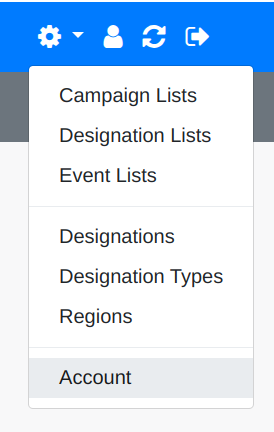
Step 1 — Open Account Settings
Navigate to your Advancement Form account settings by clicking the gear icon in the blue top navigation bar.
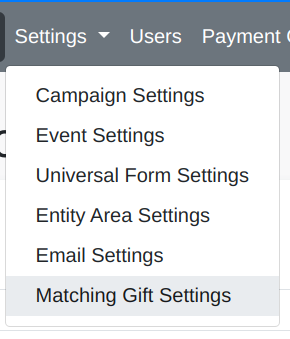
Step 2 — Open Matching Gift Settings
In the gray submenu, click Settings, then select Matching Gift Settings.
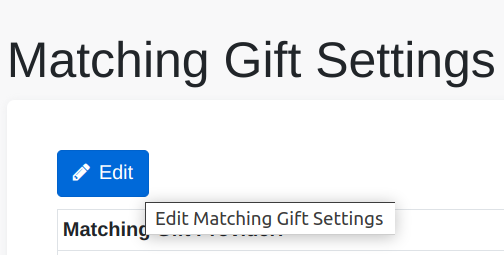
Step 3 — Click Edit to Update Matching Gift Settings
Open the Matching Gift Settings panel and select Edit.
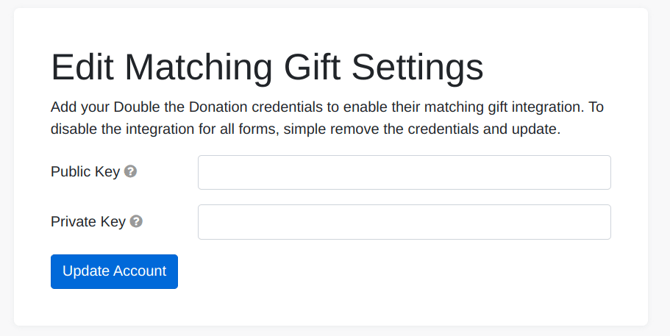
Step 4 — Enter Your Double the Donation API Keys
-
Copy your Public Key and Private Key from your Double the Donation account and paste them into Advancement Form.
- Not sure how to find your API keys? Check out this article.
-
Click Update Account.
Step 5 — Confirm Activation
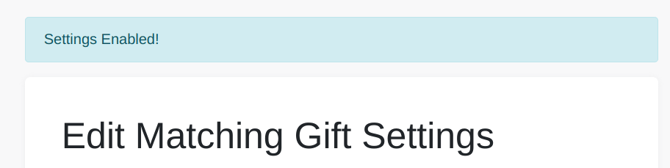
Once the credentials are saved, you will see a Settings Enabled! confirmation banner.
Step 6 — Open the Desired Campaign
-
Navigate to the campaign where you'd like to enable the matching gift field.
-
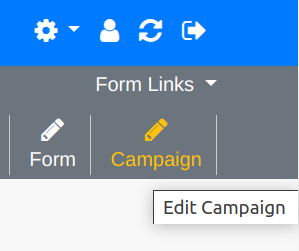
Use the gray submenu on the right to select Form Links → Campaign → Edit Campaign.
Step 7 — Enable the Matching Gift Field
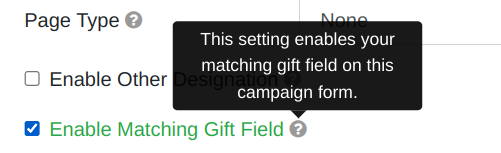
Scroll to the field titled Enable Matching Gift Field and check the box.
Integration Complete
-
Your Advancement Form campaign is now connected.
-
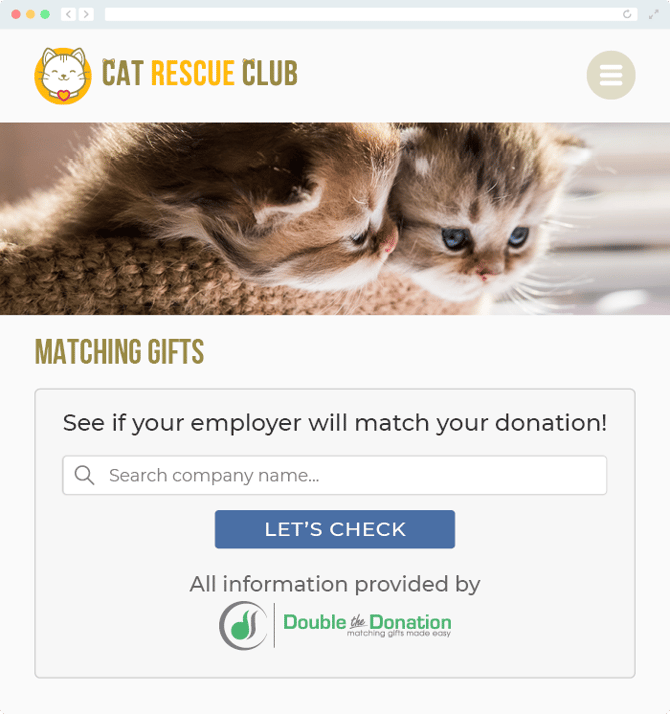
Double the Donation’s matching gift tools will automatically display during the giving process.
Advancement Form - Double the Donation Matching FAQs
Q: I don't have a Double the Donation Matching account. How do I get one?
A: Visit the Double the Donation demo request page to schedule a demo. Mention that you use Advancement Form in your demo request form.
Q: Where else can I embed Double the Donation's plugin?
A: We recommend creating a dedicated matching gift page on your website. This page will help all website visitors, not just those on your donation form, understand matching gift programs and easily find their company’s matching gift guidelines and forms.
To embed the matching gift search tool, locate your embed code from your matching module. Full instructions are available here.
Q: Where can I learn more about the Double the Donation Matching and Advancement Form integration?
A: Navigate to our partner landing page to learn how Double the Donation Matching and Advancement Form can increase your matching gift revenue!
Q: What types of workplace giving programs does Double the Donation support?
A: Yes. Double the Donation helps nonprofits and schools maximize workplace giving by supporting a range of employer-sponsored programs, including:
- Matching gifts
- Volunteer grants and paid volunteer time off (VTO)
- Payroll giving
- Corporate sponsorship opportunities
To learn more:
- Current clients can visit our Knowledge Base or connect directly with our Support team to explore how to make the most of our full suite of products.
- To see how our partnerships and integrations help organizations unlock more workplace giving, check out our workplace giving integrations page.