
Step-by-Step: Integrate Double the Donation Matching into PatronManager
PatronManager: Sponsorship Directory Implementation Partner
PatronManager - Double the Donation FAQs
You’ll need a Double the Donation account to activate this integration. Not a Double the Donation client? Schedule a demo at https://doublethedonation.com/get-a-demo/
Step-by-Step: Integrate Double the Donation Matching by Double the Donation into PatronManager
Follow the instructions below to activate the Double the Donation Matching and PatronManager integration, PatronManager also lists activation instructions on their site, which you can access here: https://help.patronmanager.com/a/1468285
Step 1 — Install the Double the Donation Matching App (Salesforce AppExchange)
-
Navigate to the Salesforce AppExchange.
-
Search for Double the Donation Matching.
-
Install the app into your PatronManager Salesforce instance.
Step 2 — Activate the Salesforce Integration
Follow Double the Donation’s Salesforce activation guide, making sure to reference Section One of the PatronManager guide to ensure correct configuration.
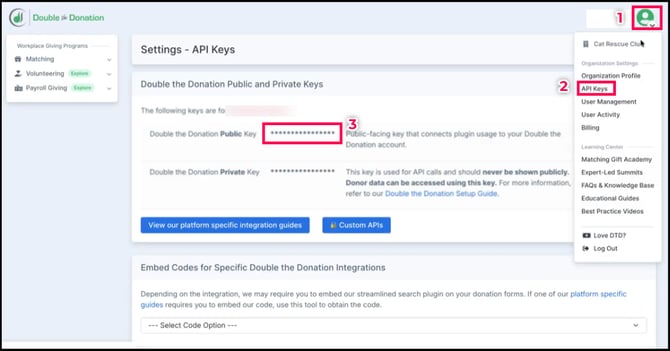
Step 3 — Copy Your Public API Key from Double the Donation
-
Log in to Double the Donation.
-
Navigate to Account Profile Dropdown → API Keys.
-
Copy your Public API Key.
- Not sure how to find your API keys? Check out this article
Step 4 — Open PatronManager App Launcher
-
Log in to PatronManager.
-
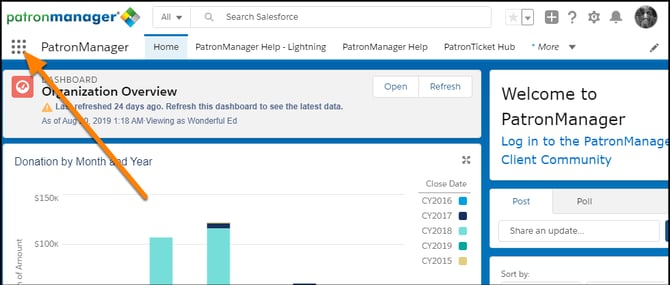
Click the App Launcher (grid icon).
Step 5 — Open Organization Settings
-
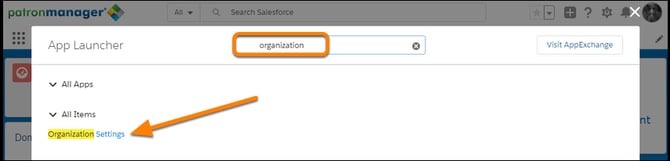
In the App Launcher search bar, type Organization Settings.
-
Select Organization Settings from the results.
Step 6 — Edit Organization Settings
-
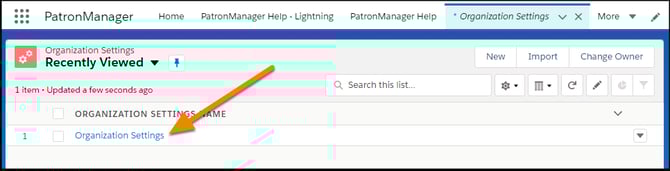
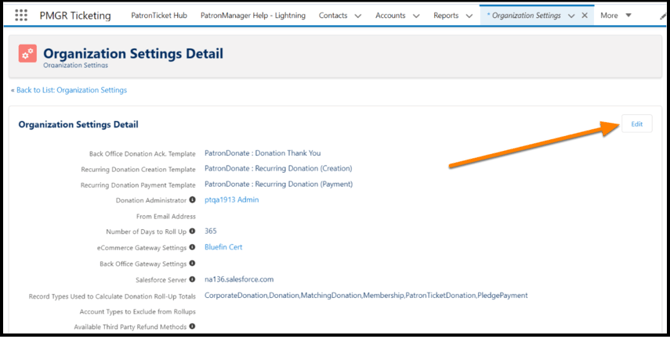
Open Organization Settings.
-
Click Edit.
Step 7 — Paste Your Public API Key
-
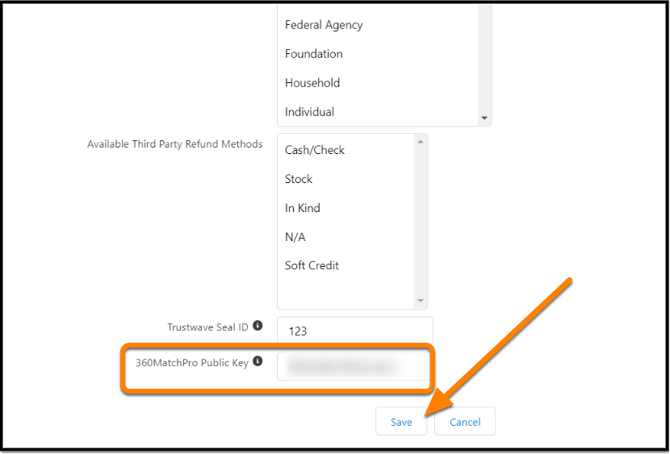
Paste your Double the Donation Public API Key into the appropriate field.
-
Click Save.
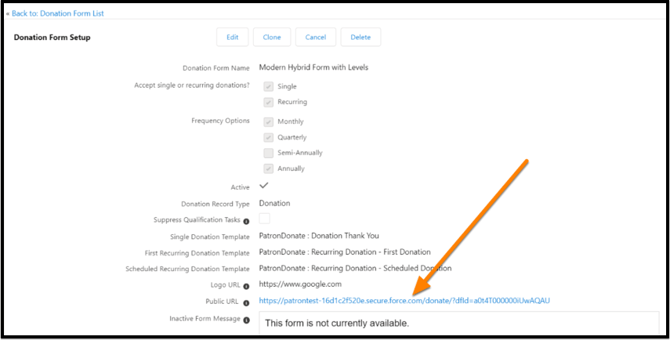
Step 8 — Navigate to Donation Forms
-
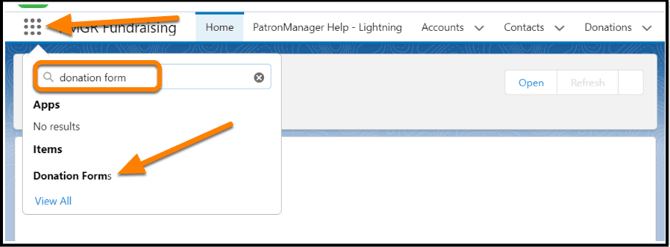
Open the Donation Forms tab in PatronManager.
-
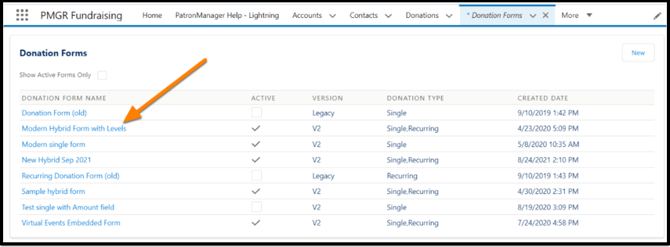
Select the Donation Form you want to update.
⚠️ The matching gift widget is only available on Donation Forms.
Step 9 — Open the Form Builder
-
Scroll to the Form Builder section.
-
Click New Content.
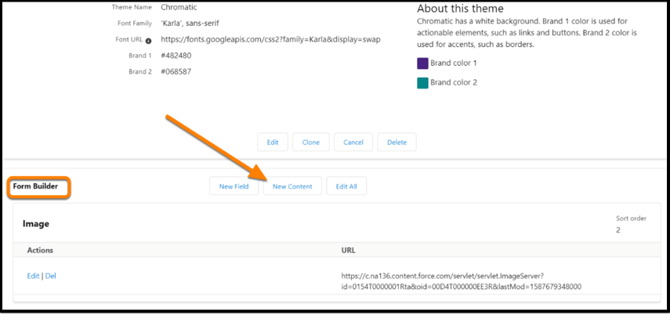
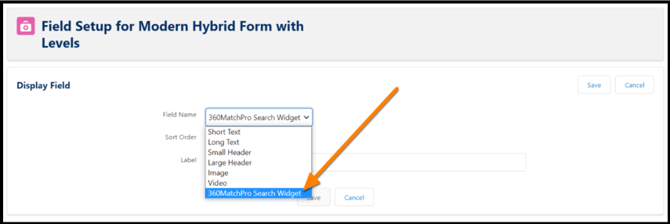
Step 10 — Add the Matching Gift Search Widget
-
Select Double the Donation Matching Search Widget from the content options.
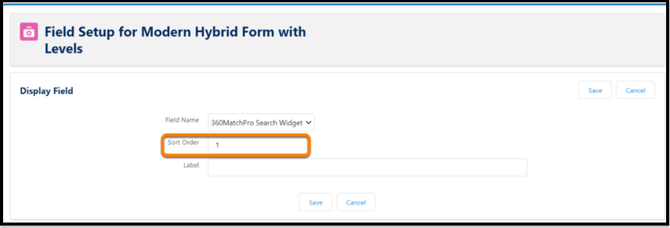
-
Enter a Sort Order (controls placement on the form).
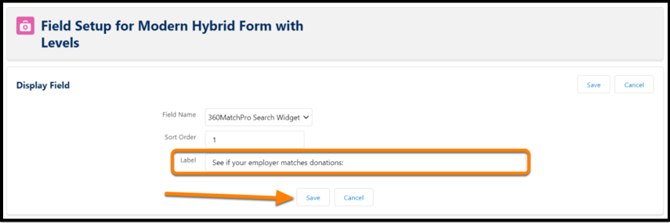
Step 11 — Label and Save the Widget
-
Enter a donor-facing label (recommended example): “See if your employer matches donations”
-
Click Save.
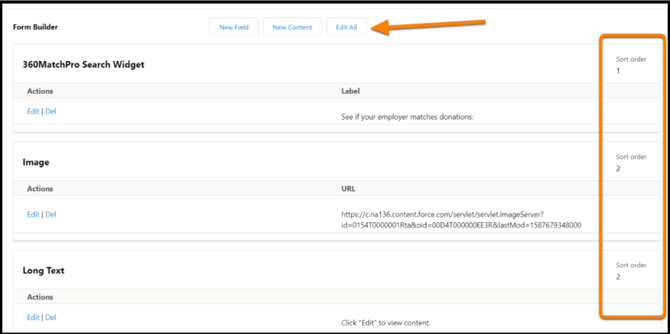
Step 12 — Adjust Placement
If needed:
-
Click Edit All in the Form Builder.
-
Adjust Sort Order values to reposition the widget.
Step 13 — Repeat for Additional Forms
Repeat the steps above for any other donation forms where you want matching gifts enabled.
Integration Complete
Once configured:
-
Donors see the employer search widget on PatronManager donation forms
-
Donation records will sync into Double the Donation Matching
PatronManager: Sponsorship Directory Implementation Partner
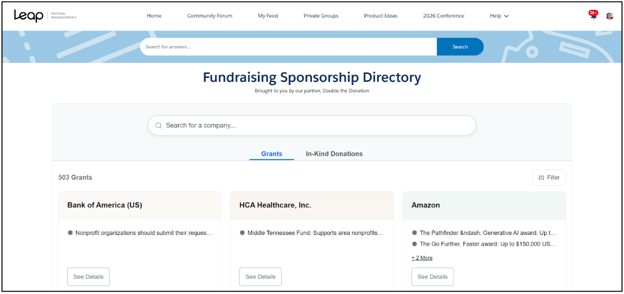
PatronManager is an Implementation Partner for the Double the Donation Sponsorship Directory—a tool that helps nonprofits identify corporate grants and in-kind donation opportunities.
The Sponsorship Directory provides:
- Curated corporate funding opportunities
- Eligibility details
- Program descriptions
- Application steps
To access the directory:
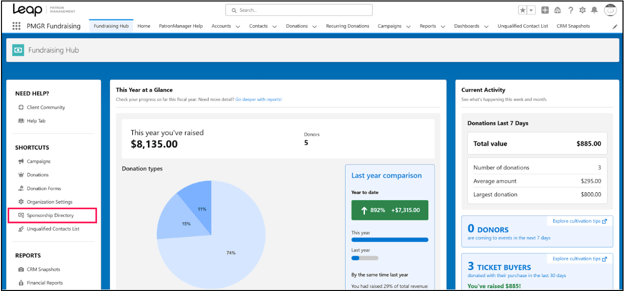
Log in to PatronManager, and find the Sponsorship Directory on the “Shortcuts” tab within Fundraising Hub.
PatronManager - Double the Donation FAQs
Q: I don’t have a Double the Donation Matching account. How do I get one?
A: Visit the Double the Donation demo request page to schedule a demo. Mention that you use PatronManager in your demo request form.
Q: Where can I embed Double the Donation's matching gift search plugin?
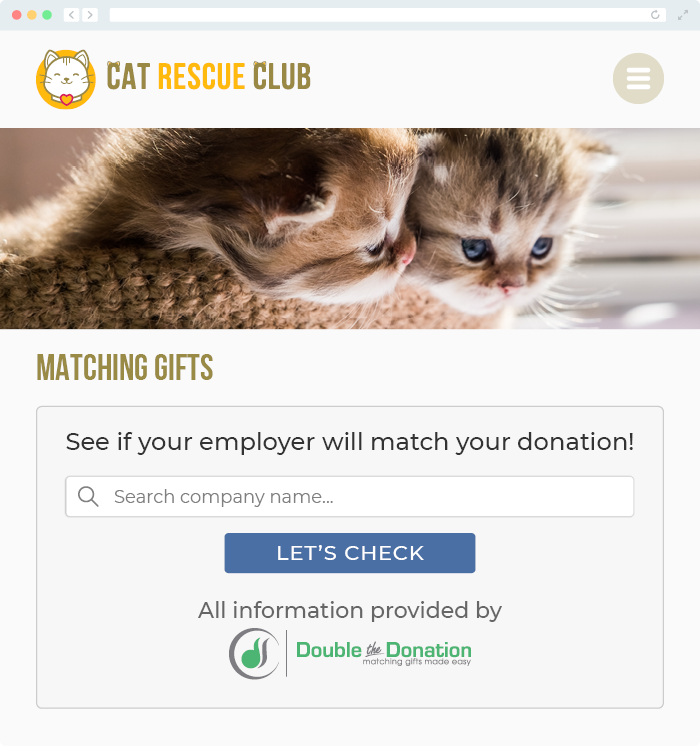
A: We recommend creating a dedicated matching gift page on your website. This page will help all website visitors, not just those on your donation form, understand matching gift programs and easily find their company’s matching gift guidelines and forms.
To embed the matching gift search tool, locate your embed code from your matching module. Full instructions are available here.
Q: Where can I learn more about the Double the Donation Matching and PatronManager integration?
A: Navigate to our partner landing page to learn how Double the Donation Matching and PatronManager can increase your matching gift revenue!
Q: What types of workplace giving programs does Double the Donation support?
A: Yes. Double the Donation helps nonprofits and schools maximize workplace giving by supporting a range of employer-sponsored programs, including:
- Matching gifts
- Volunteer grants and paid volunteer time off (VTO)
- Payroll giving
- Corporate sponsorship opportunities
To learn more:
- Current clients can visit our Knowledge Base or connect directly with our Support team to explore how to make the most of our full suite of products.
- To see how our partnerships and integrations help organizations unlock more workplace giving, check out our workplace giving integrations page.