
Understanding Commitments vs. Inquiries
Linking Inquiries to the Sponsorships Tracker
Overview of the Plugin Inbox
When a prospective corporate partner interacts with your embedded website plugin, their submission routes directly into your Double the Donation account. The Plugin Inbox replaces static contact forms and general email inboxes, allowing your team to evaluate pending sponsor applications and custom inquiries quickly.
To access your inbox, navigate to Sponsorships → Sponsorships Tracker and click Plugin Inbox (or click Open Inbox on pending banner notifications).

Click here to learn more about Managing the Sponsorships Tracker Pipeline.
Understanding Commitments vs. Inquiries
The Plugin Inbox categorizes incoming web interest into two distinct sections:
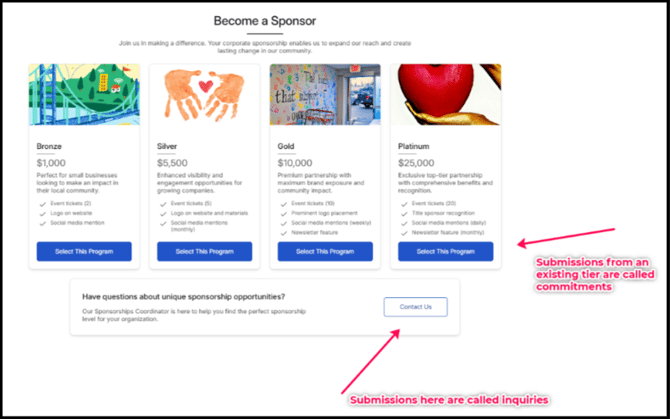
- Commitments: Submitted when a company selects a specific, published sponsorship package tier (e.g., Bronze, Silver, Gold) and completes the tier form.
- Inquiries: Submitted when a company clicks the Contact Us button located beneath your package tiers to ask custom questions, clarify program benefits, or request a tailored partnership package.
Managing Inbound Commitments
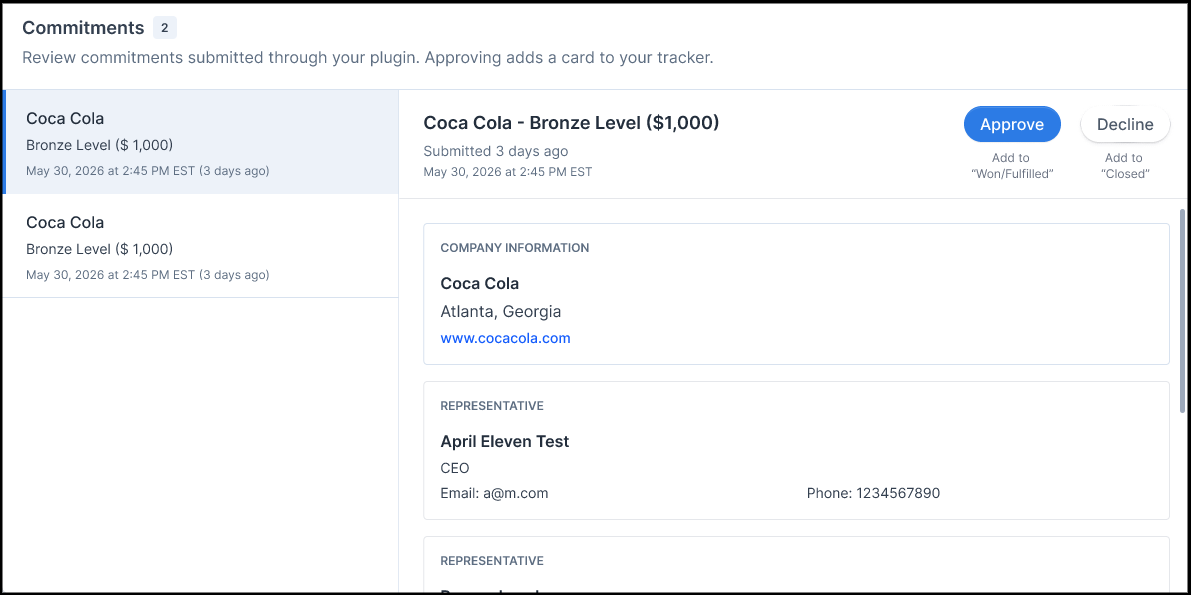
The Commitments section displays all pending tier selections awaiting review.
- Open the Plugin Inbox and select the Commitments tab.
- Click a pending submission from the queue to review full details:
- Selected Tier: Tier level and dollar value (e.g., Coca-Cola - Silver Level ($5,500)).
- Company Information: Corporate name, tax details, address, and website.
- Representative Info: Primary contact name, position, email address, and direct phone number.
- Program Benefits: Itemized list of benefits associated with the selected tier.
- Company Logo: Downloadable image file provided by the sponsor.
- Process the submission:
- Approve: Accepts the commitment. The system automatically creates an Inbound Card and places it directly into the Won/Fulfillment stage of your Sponsorships Tracker board.
- Decline: Rejects the commitment. The system moves the record into the Closed column of your tracker for historical recordkeeping.
Managing Inbound Inquiries
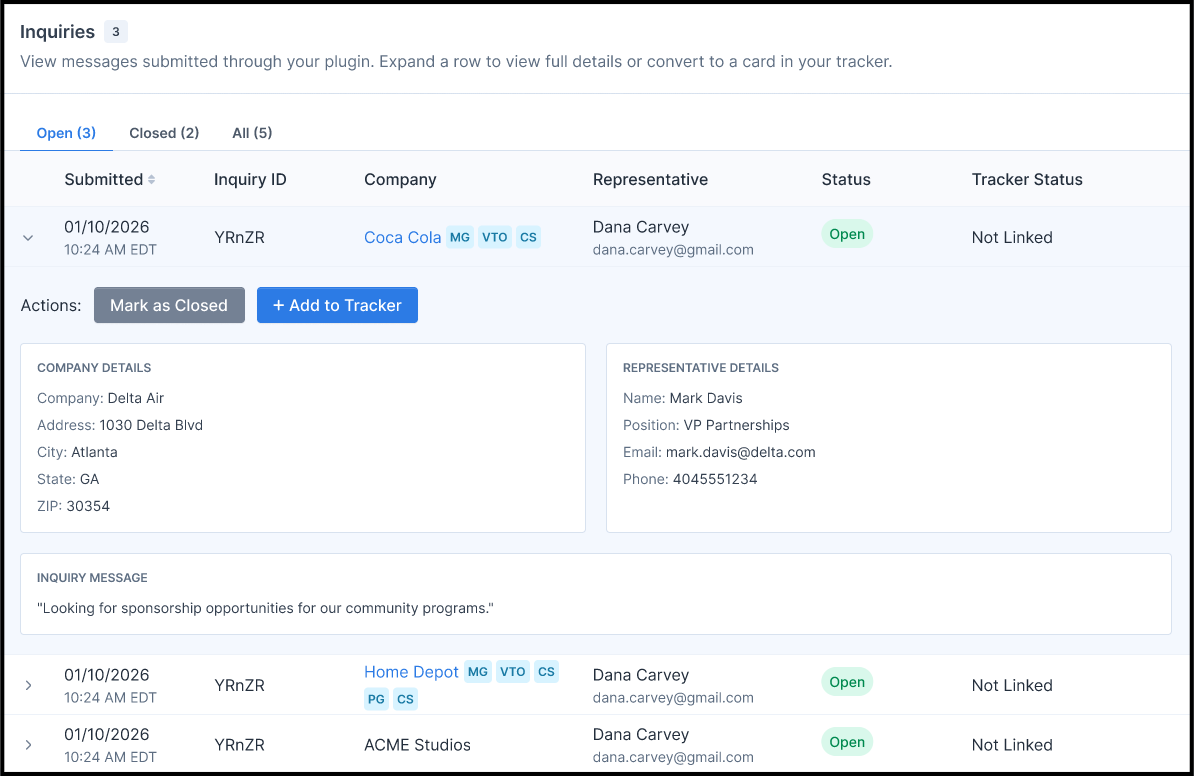
The Inquiries tab displays a structured table of custom messages and general questions sent through the "Contact Us" form on your plugin.
- Open the Plugin Inbox and select the Inquiries tab.
- Use the sub-navigation tabs to filter view lists: Open, Closed, or All.
- Click any row in the table to expand the inquiry panel and review details:
- Company Details: Organization name, address, and tax information.
- Representative Details: Contact name, title, email, and phone number.
- Inquiry Message: The full text question or custom proposal written by the corporate representative.
- Update inquiry status:
- Mark as Closed: Once your team has responded to or addressed the question outside the platform, click Mark as Closed to move the entry out of your open queue.
- Re-open: Open a closed inquiry record at any time and click Re-open to return it to your active open queue.
Linking Inquiries to the Sponsorships Tracker
If an inquiry represents a promising custom partnership opportunity that requires ongoing negotiation, you can convert it into an active card on your Kanban board:
- Expand the inquiry row in the Inquiries table.
- Click + Add to Tracker.
- In the modal that appears, enter tracking parameters:
- Card Name & Type: Defaults to [Company Name] - Inquiry under the Inbound Inquiry card type.
- Amount ($): Enter an estimated target or negotiated deal value.
- Status: Select the initial target pipeline stage (e.g., Prospecting or Active Negotiation).
- Notes: Add internal notes or assigned staff details.
- Click + Add to Tracker.
Note: Once an inquiry is converted, its table record displays a Linked badge alongside a See Card button. Clicking See Card takes you directly to the highlighted deal card on your Sponsorships Tracker board.
Frequently Asked Questions
Q: What is the difference between a commitment and an inquiry in my inbox?
A: A commitment occurs when a business selects a pre-defined sponsorship tier (e.g., $1,000 Bronze package). An inquiry occurs when a business uses the "Contact Us" button to request custom sponsorship arrangements or ask general questions.
Q: Where do approved commitments go?
A: Approved submissions automatically create a card in the Won/Fulfillment column of your Sponsorships Tracker board, so your team can begin delivering sponsor benefits.