
Overview of the Sponsorships Tracker
Key Components of the Sponsorships Tracker View
1. Header Toolbar & Quick Actions
2. Visual Pipeline Stages (Kanban Board)
Adding New Opportunities to Your Tracker Pipeline
Method A: Proactive Search Directory (Outbound Opportunities)
Method B: Approving Web Plugin Submissions (Inbound Commitments)
Managing and Updating Pipeline Cards
Overview of the Sponsorships Tracker
The Sponsorships Tracker consolidates all your corporate sponsorship pursuits into a single visual Kanban board. It supports both Inbound Commitments (sponsors who signed up via your website plugin) and Outbound Applications (grants or sponsorships your organization proactively finds and applies for).
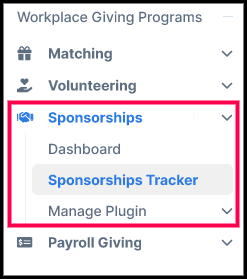
To open your board, navigate to Sponsorships → Sponsorships Tracker.
Key Components of the Sponsorships Tracker View
1. Header Toolbar & Quick Actions
- Plugin Inbox Button / Banner: Displays real-time notifications when new corporate commitments or inquiries arrive via your website plugin. Click Plugin Inbox (or Open Inbox) to review pending web submissions.
- Search Directory Button: Opens the searchable database of corporate grants and in-kind donation opportunities to discover new prospective partners.
2. Visual Pipeline Stages
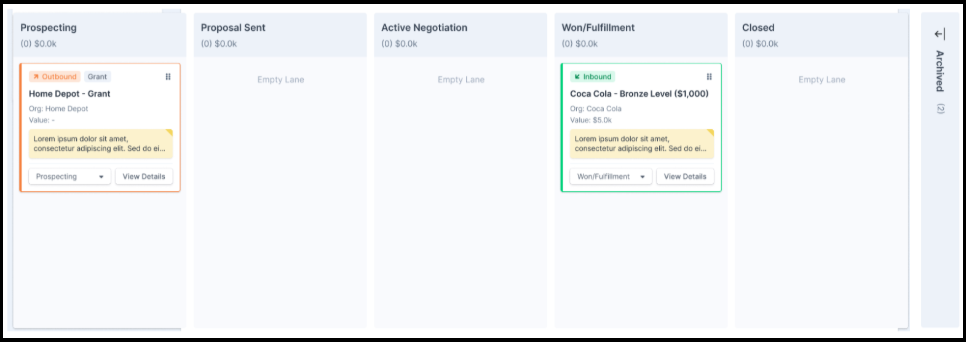
Tracks opportunities across active stages alongside a collapsible column for archived records.
Understanding Pipeline Stages & The Archived Column
The tracker board categorizes corporate opportunities across six default columns:
- Prospecting: Displays newly identified corporate prospects or grant opportunities added directly from the search directory or created manually for initial research.
- Proposal Sent: Tracks outbound corporate applications or formal sponsorship proposals that have been submitted to a company and are awaiting an initial response.
- Active Negotiation: Highlights ongoing sponsorship discussions, tailored package reviews, or follow-up communications prior to securing a decision.
- Won/Fulfillment: Represents confirmed commitments. This includes approved inbound web submissions from your plugin and successfully awarded grant applications requiring benefit delivery or sponsorship recognition.
- Closed: Tracks declined inbound commitments, rejected grant applications, or unfulfilled proposals.
- Archived: Holds deal cards that no longer require active tracking. Archiving hides cards from your active pipeline view without permanently deleting their historical data, keeping your main tracker board clean and organized.
Adding New Opportunities to Your Tracker Pipeline
You can build your pipeline through both outbound discovery and inbound web submissions:
Method A: Proactive Search Directory (Outbound Opportunities)
- Click Search Directory in the top right corner of the tracker header.
- Search and filter through available corporate grants and in-kind donation programs.
- Convert findings directly into pipeline deal cards:
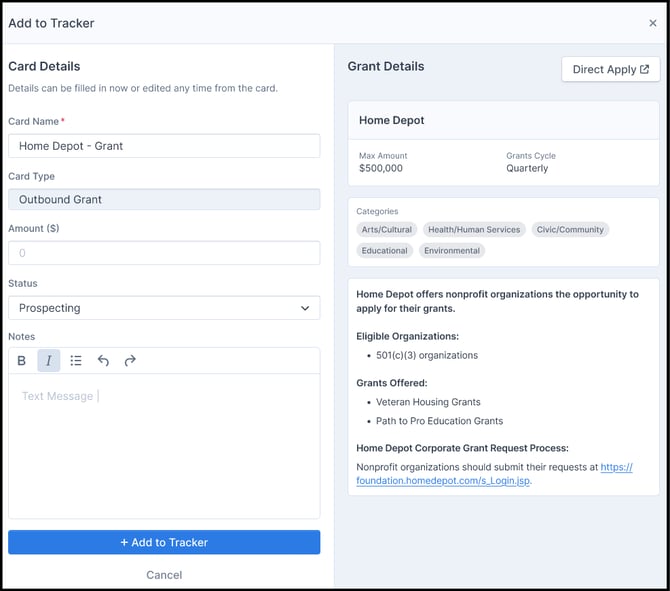
- Quick Add: Click + Quick Add on any opportunity card to immediately place it into the Prospecting column of your tracker.
- Detailed Add: Click + Add to Tracker to open a detailed modal. Review official application requirements, set target dollar amounts, and add internal notes or submission due dates before saving the card to your board.
Method B: Approving Web Plugin Submissions (Inbound Commitments & Inquiries)
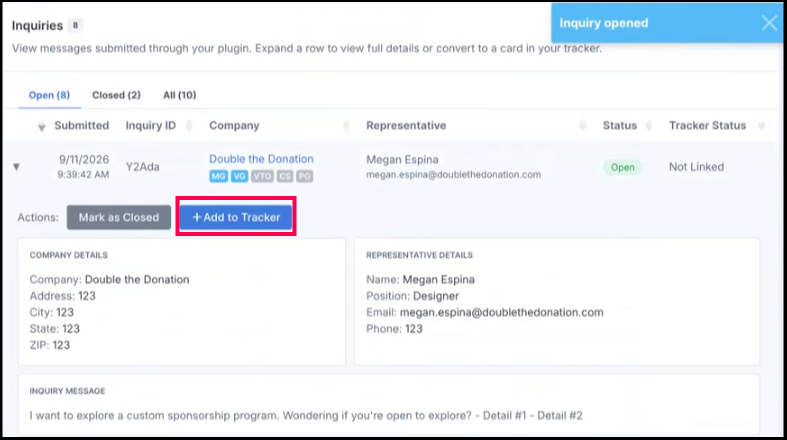
- When a corporate partner selects a tier or submits a question on your embedded website plugin, click Plugin Inbox at the top of your tracker.

- Review the submission details.
- For commitments, click Approve to generate an inbound card automatically inside the Won/Fulfillment stage of your tracker board. For inquiries, click + Add to Tracker to create a linked deal card in any selected stage.

Managing and Updating Pipeline Cards
Moving Cards Across Stages
Drag and drop deal cards horizontally between columns as your corporate conversations progress from initial outreach to confirmed fulfillment.
Archiving Inactive or Complete Cards
To maintain a decluttered board, move cards that no longer require active attention to the Archived column:
- Option 1 (Drag and Drop): Expand the Archived column on the far right of your board and drag the card directly into the column.
- Option 2 (Details Modal): Click View Details on any card, select Archive at the bottom of the card panel, and confirm the action.
Tip: Archived cards render with a muted visual style. You can move an archived card back to an active pipeline stage at any time by dragging it out of the column or updating its status dropdown inside the detail view.
Viewing and Editing Card Details
- Click View Details on any card to open the complete management modal.
- Update tracking parameters on the left panel:
- Card Name & Type: Modify internal titles or card classifications.
- Status: Adjust the card's current pipeline column via the dropdown menu.
- Amount ($): Update requested, negotiated, or finalized sponsorship amounts.
- Notes: Log internal communications, follow-up dates, assigned team members, or custom notes.
- Review connected reference details on the right panel:
- For Outbound Cards: View official corporate grant details, eligibility guidelines, maximum funding limits, and application links.
- For Inbound Cards: View corporate contact details, company representative info, tax IDs, downloaded logos, and selected tier benefits.
- Click Save Changes to commit your updates.
Frequently Asked Questions
Q: Should I move a card to "Closed" or "Archived"?
A: Use Closed for deals or grant applications that were officially rejected or lost during negotiation. Use Archived for old, completed, or inactive cards that you want to hide from your daily working board without deleting the underlying records.
Q: Does moving an outbound card to "Proposal Sent" automatically submit a grant application to the corporation?
A: No. The Sponsorships Tracker serves as an internal pipeline and ticketing system. You must still submit formal application forms through the specific corporation's official grant portal or process.