
BStep-by-Step: Integrate Double the Donation Matching into Ascend
Step-by-Step: Integrate Double the Donation Matching into Portal and Connect Donation Forms
- Remove/add Relevant Lightning Web Components for Portal Forms
- Remove/add Relevant Lightning Web Components for Connect Forms
Ascend - Double the Donation FAQs
Double the Donation helps nonprofits and schools grow revenue across workplace giving programs, including matching gifts, volunteer incentives, payroll giving, and corporate sponsorship opportunities. Our workplace giving automation platform identifies eligible opportunities and drives more submissions to completion.
You’ll need a Double the Donation account to activate this integration. Not a Double the Donation client? Schedule a demo at https://doublethedonation.com/get-a-demo/
Double the Donation Matching integrates with both the ascend CRM and Portal donation forms. Please ensure you follow the correct steps in this guide according to which platform you are integrating with Double the Donation.
Step-by-Step: Integrate Double the Donation Matching into Ascend
⚠ Important Warning
Activating the Ascend integration may cause historic donation records to flow into Double the Donation Matching.
Before enabling, disable all automated email templates in Double the Donation to avoid sending emails for past donations.
Step 1 — Open Custom Metadata Types
-
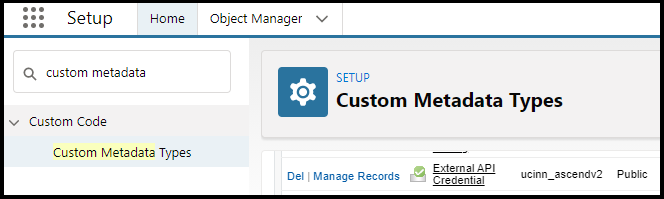
In Ascend, navigate to Setup.
-
In the search bar, enter Custom Metadata Types.
-
Locate External API Credential and select Manage Records.
Step 2 — Locate the Double the Donation API Records
Find the following records:
-
Double The Donation API Key Public
-
Double The Donation API Key Secret

Step 3 — Enter Your API Keys
-
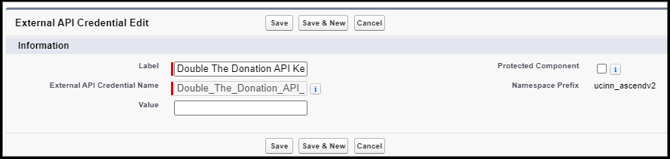
Click Edit on each record.
-
Populate:
-
Public Key → Double the Donation Public API Key
-
Secret Key → Double the Donation Private API Key
-
Not sure how to find your API keys? Check out this article.
-
-
-
Click Save.
Step 4 — Enable the Integration
-
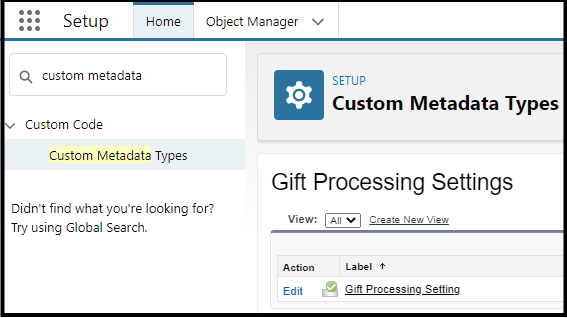
Return to Custom Metadata Types.
-
Open Gift Processing Settings and select Manage Records.
-
Click Edit.
Step 5 — Turn On Double the Donation
-
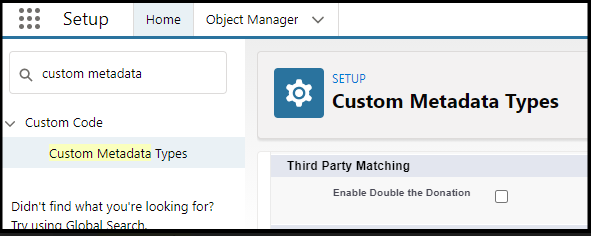
Check Enable Double the Donation.
-
Click Save.
Before adding the Double the Donation Matching integration to your Portal donation forms, please ensure your ascend integration is configured correctly according to the documentation.
Part 1: Configuration within ascend:
Step 1 — Run the Script
After completing a normal installation or upgrade:
-
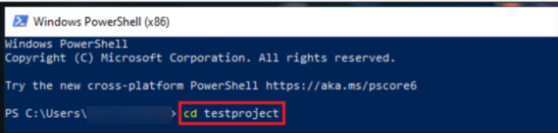
Open your operating system’s Command program.
-
Navigate to your project directory: cd <project-name>
- Run: ./scripts/install_portal_dtd_script.ps1
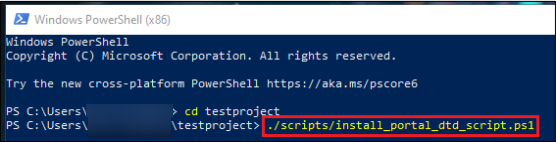
If you are integrating Double the Donation into a Sandbox org, run the following script instead: ./scripts/install_portal_dtd_script.ps1 -installOnSandbox $true
Step 2 — Open Permission Sets
-
Navigate to Setup.
-
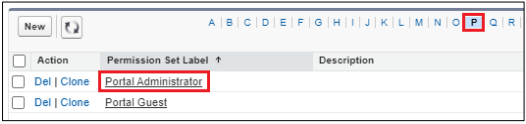
Search for Permission Sets.
-
Select:
-
Portal Administrator (Portal forms), or
-
Connect Administrator (Connect forms)

-
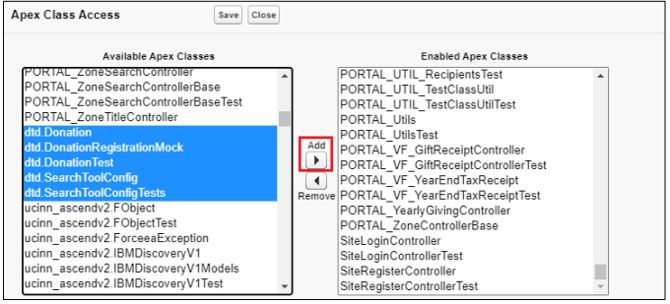
Step 3 — Enable Apex Class Access
-
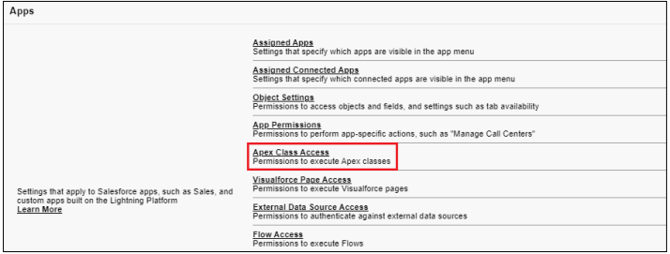
Select Apex Class Access → Edit.
-
Add all Apex classes beginning with dtd_ (five total).
-
Click Save.
Step 5 — Configure Search Tool Metadata
-
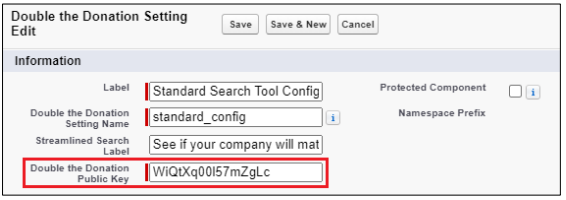
Navigate to Custom Metadata Types → Double the Donation Setting → Manage Records.
-
Edit Standard Search Tool Configuration.
-
Paste your Public Key and click Save.

Step 6 — Configure External API Credential Metadata
Update the following records:
-
Double The Donation API Key Public
-
Double The Donation API Key Secret
-
Double The Donation Get Gift Endpoint
Step 7 — Configure the Double the Donation Public Key
-
Navigate to Setup.
-
In the Quick Find box, search for and select Custom Metadata Types.
-
Locate Double the Donation Setting and click Manage Records.

-
Find the Standard Search Tool Configuration record and click Edit.
-
Enter your Double the Donation Public Key in the appropriate field.
-
Click Save.
Step 8 — Configure External API Credentials
-
Navigate to Setup.
-
In the Quick Find box, search for and select Custom Metadata Types.
-
Locate External API Credential and click Manage Records.
Add API Keys
-
Find Double The Donation API Key Public and click Edit.
-
Enter your Double the Donation Public Key in the Value field.
-
Click Save.
-
Find Double The Donation API Key Secret and click Edit.
-
Enter your Double the Donation Private Key in the Value field.
-
Click Save.
Configure the Donation Endpoint
-
Locate Double The Donation Get Gift Endpoint and click Edit.
-
Enter the following URL in the Value field: https://doublethedonation.com/api/360matchpro/v1/get_donation
- Click Save.
Now, let’s add or remove the relevant Lightning Web Components based on your form type, portal or connect:
Part 2 for Portal Forms: Remove/add Relevant Lightning Web Components (LWCs)
-
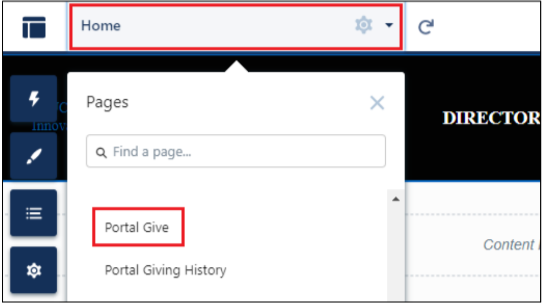
Open Setup → All Sites → Builder.
-
Navigate to the Portal Give page.
-
Remove:
-
portal_OnlineGivingMatchingCompany
-
-
Add:
-
portal_OnlineGivingMatchingCompanyDTD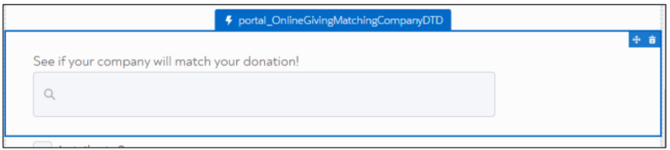
-
portal_OnlineGivingReceiptDTD
-
- Optionally, configure the components’ design attributes.
-
Publish the site.
You're all set! Double the Donation Matching will now appear on your Portal Donation Forms!
Part 2 for Connect Forms: Remove/Add the Relevant Lightning Web Components (LWCs)
Prior to using Double the Donation, the user must switch out the onlineGivingWrapper component for the onlineGivingWrapperDTD component. To do this, do the following:
-
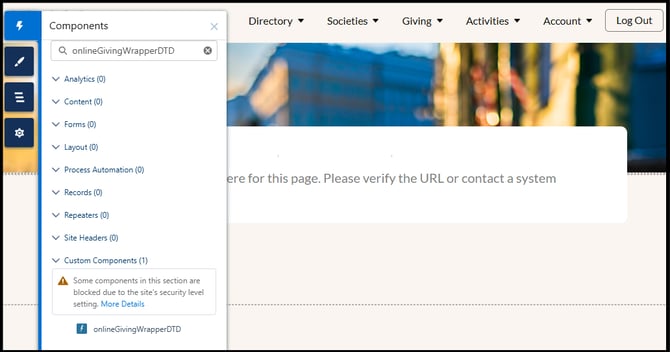
Open Experience Builder → Connect Give page.
-
Remove:
-
onlineGivingWrapper
-
-
Click on the Components button in the top-left corner of the page.
-
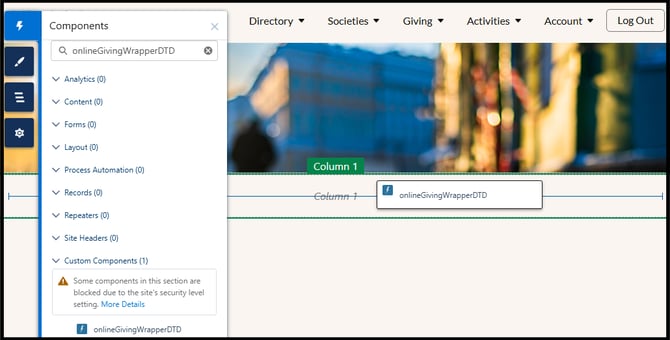
In the search bar, enter onlineGivingWrapperDTD.
-
Add:
-
onlineGivingWrapperDTD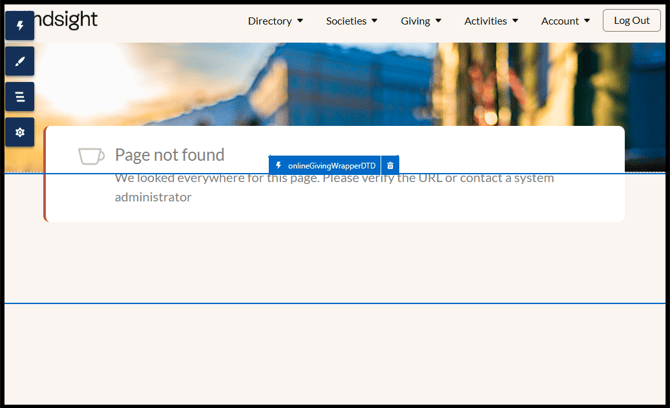
-
-
Publish the site.
Additional requirement for Connect forms
-
Assign the Double the Donation permission set to authenticated and guest users
-
Configure the Interim Dedupe Process (see Ascend Dedupe User Manual)
Kindsight - Double the Donation FAQs
Q: What happens once the Ascend integration is activated?
A: All historic donation records will be imported from Ascend into the Double the Donation Matching donations table. We strongly recommend disabling automated matching gift emails within the matching module prior to completing the Ascend integration. Once the Ascend integration is completed and automated matching gift communications are re-enabled, an automated message will be scheduled for each new donation to flow from Ascend into Double the Donation.
Q: I don’t have a Double the Donation account. How do I get one?
A: Visit the Double the Donation demo request page to schedule a demo. Mention that you use Kindsight Ascend in your demo request form.
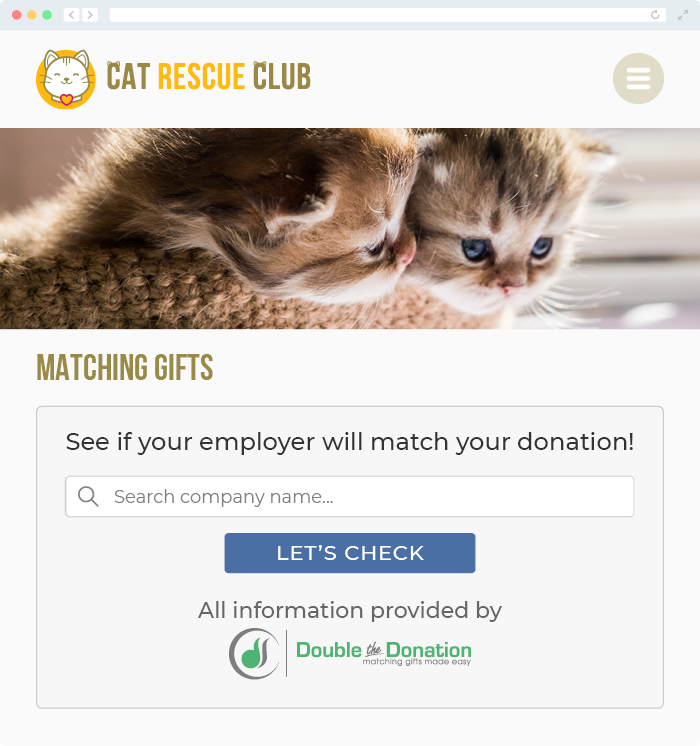
Q: Where can I embed Double the Donation's matching gift search plugin?
A: We recommend creating a dedicated matching gift page on your website. This page will help all website visitors, not just those on your donation form, understand matching gift programs and easily find their company’s matching gift guidelines and forms.
To embed the matching gift search tool, locate your embed code from your matching module. Full instructions are available here.
Q: Where can I learn more about the Double the Donation Matching and Kindsight Ascend integration?
A: Navigate to our partner landing page to learn how Double the Donation Matching and Kindsight Ascend can increase your matching gift revenue!
Q: What types of workplace giving programs does Double the Donation support?
A: Yes. Double the Donation helps nonprofits and schools maximize workplace giving by supporting a range of employer-sponsored programs, including:
- Matching gifts
- Volunteer grants and paid volunteer time off (VTO)
- Payroll giving
- Corporate sponsorship opportunities
To learn more:
- Current clients can visit our Knowledge Base or connect directly with our Support team to explore how to make the most of our full suite of products.
- To see how our partnerships and integrations help organizations unlock more workplace giving, check out our workplace giving integrations page.