
Step-by-Step: Integrate Double the Donation Matching into Microsoft Dynamics 365
Recommended Approach: Integrate Microsoft Dynamics 365 with Double the Donation Matching
Step-by-Step Mapping Fields between Double the Donation Matching and Microsoft Dynamics 365
Microsoft Dynamics 365 - Double the Donation FAQs
Step-by-Step: Integrate Double the Donation Matching into Microsoft Dynamics 365
Double the Donation offers two integration approaches:
-
Backend API integration (recommended)
-
Power Automate flow (alternative)
Both methods enable automated matching gift outreach, but the backend API integration is strongly recommended for ease of setup, flexibility, and long-term maintenance.
Double the Donation helps nonprofits and schools grow revenue across workplace giving programs, including matching gifts, volunteer incentives, payroll giving, and corporate sponsorship opportunities. Our workplace giving automation platform identifies eligible opportunities and drives more submissions to completion.
You’ll need a Double the Donation account to activate this integration. Not a Double the Donation client? Schedule a demo at https://doublethedonation.com/get-a-demo/
Recommended Approach: Integrate Microsoft Dynamics 365 with Double the Donation Matching
Why this matters: The backend API integration is faster to set up, easier to manage, and more customizable than Power Automate.
Step 1 — Log In to Double the Donation Matching
Go to: https://doublethedonation.com/members/
Step 2 — Open the Integrations Directory
-
Select Integrations from the left-hand menu.
-
Click Browse.
-
Search for Microsoft Dynamics 365.
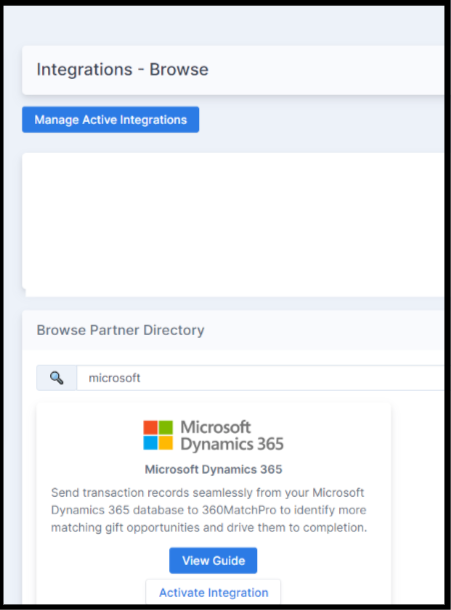
Step 3 — Activate the Integration
-
Click Activate Integration.
-
Select Sign in with Microsoft Dynamics 365 when prompted.
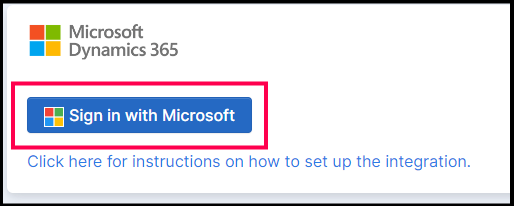
Step 4 — Authorize Your Microsoft Environment
-
Enter your Microsoft credentials.
-
Select the Dynamics 365 environment you want to connect.
-
Authorize the connection.
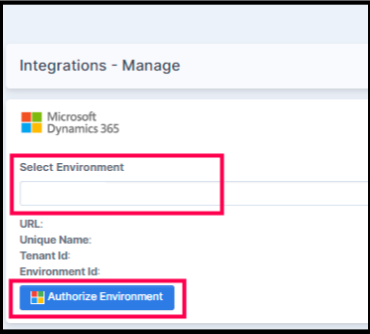
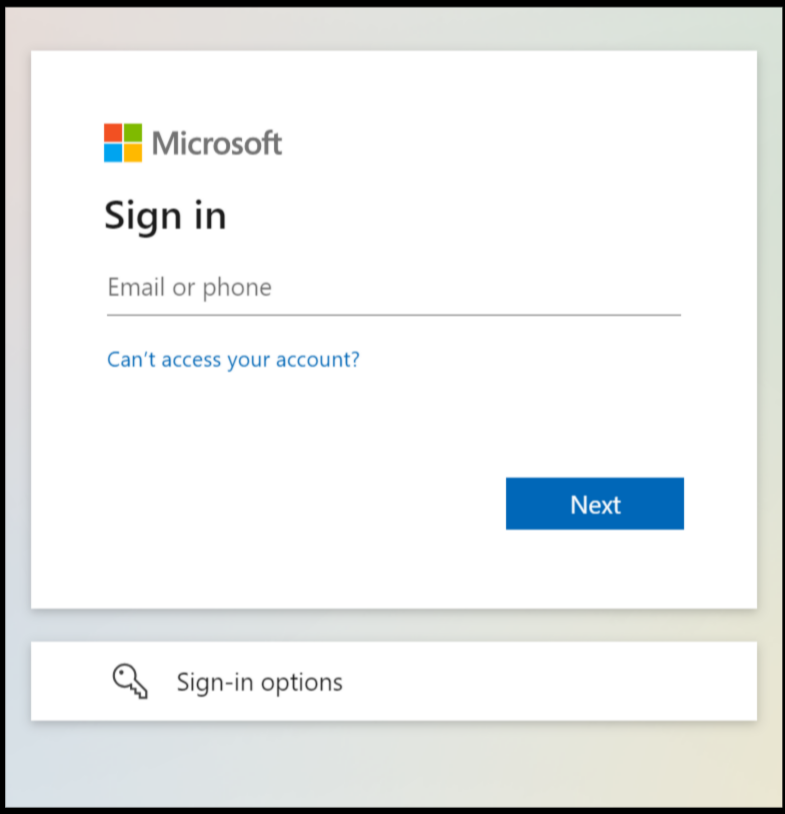
Result
-
Connection is established
-
You’re ready to configure mappings
Step-by-Step Mapping Fields between Double the Donation Matching and Microsoft Dynamics 365
Why Field Mapping Matters: Every Dynamics 365 instance stores donation data differently. Mapping tells Double the Donation where to find the data it needs to automate matching gift outreach accurately.
Step 1 — Select the Donation Entity
-
Navigate to Integrations → Manage → Microsoft Dynamics 365.
-
Use the dropdown to select the entity where donations are stored (e.g., Opportunity, Transaction).

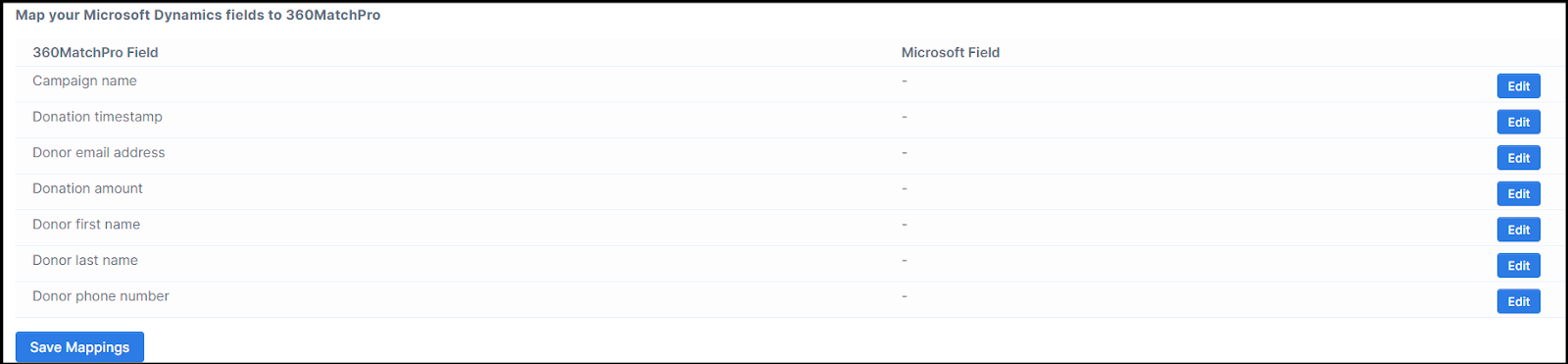
Step 2 — Edit Field Mappings
-
Click Edit next to each Double the Donation field.
-
Map it to the correct Dynamics 365 field.
-
Click Save Mappings when complete.
Step-by-Step: Configuring Custom Filters with your Double the Donation Matching and Microsoft Integration
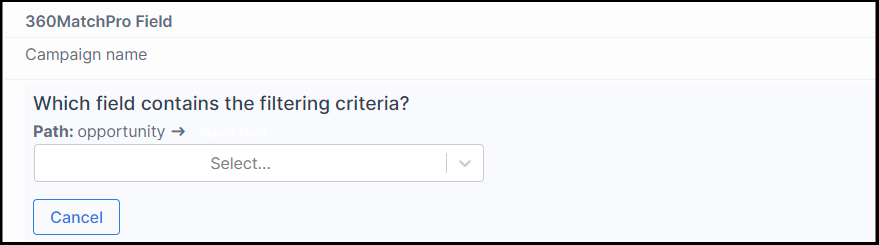
What do these steps do? There will always be some exceptions to the general rules that your organization uses to store data in Microsoft. You can refine your field mapping using custom filters to account for these fringe scenarios and ensure smooth data transfer, donor communications, and data hygiene. Double the Donation Matching will import donations that meet the criteria you set here.
Step 1 — Open Custom Filters
-
Go to Integrations → Manage → Microsoft Dynamics 365.
-
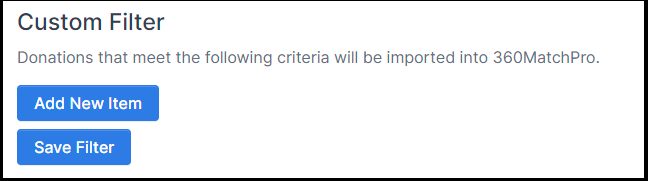
Scroll to the Custom Filter section.
-
Click Add New Item.
Step 2 — Define Filter Criteria
-
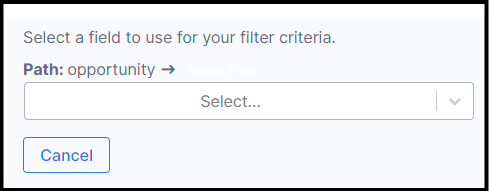
Select a Dynamics field (e.g., Opportunity Type).
-
Define criteria that records must meet to sync.
Step 3 — Save the Filter
Click Save Filter.
(Alternative Approach) Integrate Microsoft Dynamics 365 with Double the Donation Matching using Power Automate
Important: This approach requires additional setup and an import file from Double the Donation Support.
When to Use This Option
-
If backend API integration is not viable for your organization
-
If your IT team prefers Power Automate workflows
Note: Contact support@doublethedonation.com to request your Microsoft Dynamics 365 Double the Donation Matching import file before beginning this setup.
High-Level Steps
-
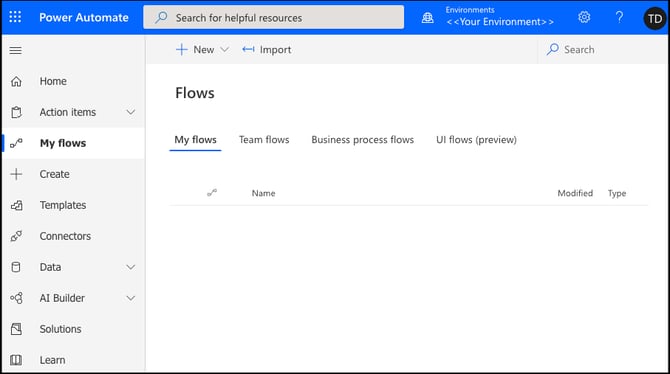
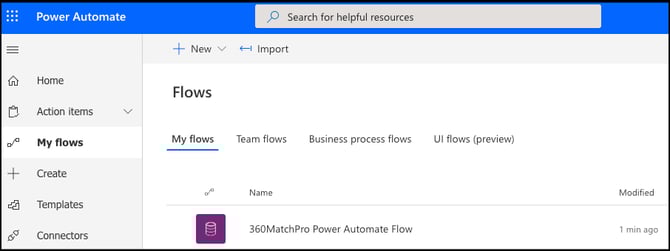
Navigate to Power Automate → My Flows → Import.
-
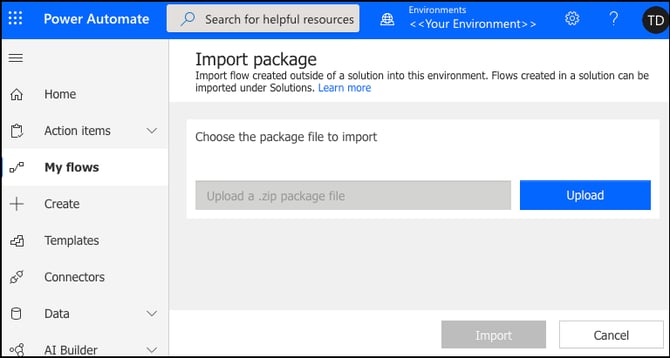
Select the Microsoft Dynamics 365 Double the Donation Matching import file provided to you by Double the Donation support.
-
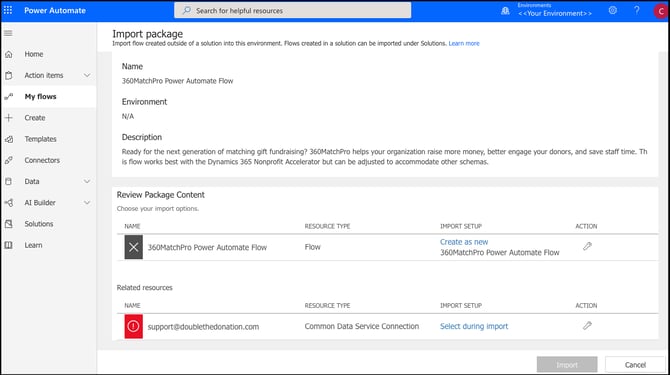
Select your environment resource.
-
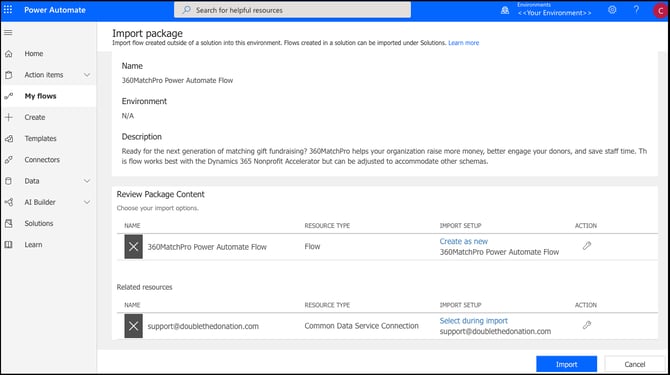
Select Import.
-
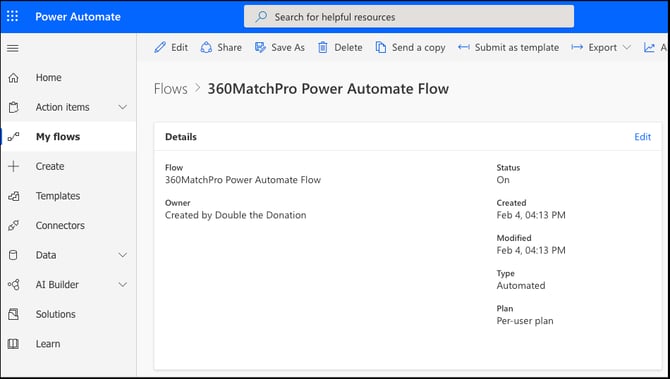
Navigate to the Double the Donation flow by navigating to My Flows and selecting Double the Donation Power Automate Flow.
-
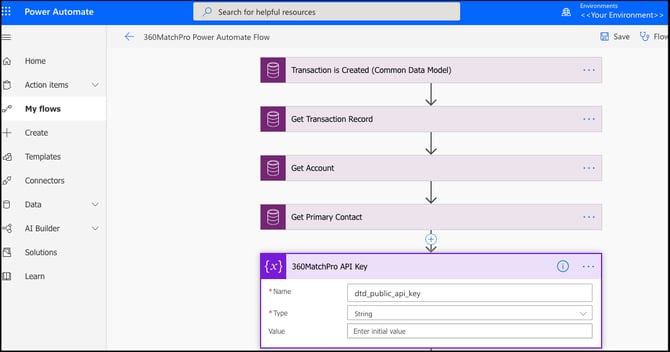
Edit the flow and enter your Double the Donation Public API Key.
-
Not sure how to find your API keys? Check out this article.
-
-
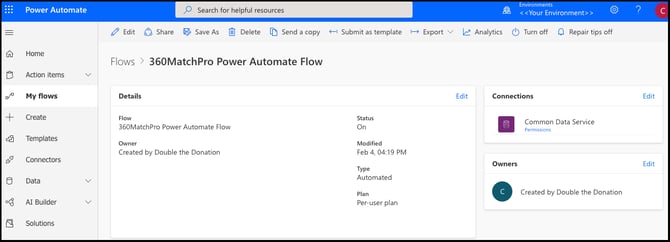
Save and confirm the flow is turned On.
Microsoft Dynamics 365 - Double the Donation FAQs
Q: I don't have a Double the Donation account. How do I get one?
A: Visit the Double the Donation demo request page to schedule a demo. Mention that you use Microsoft Dynamics 365 in your demo request form.
Q: What approach should I use to connect my Microsoft Dynamics 365 + Double the Donation Matching instances?
A: We recommend establishing and managing the integration from directly within your Double the Donation account, using our backend API integration. This integration option allows for a quicker set-up, easier integration customization and flexibility, and easier integration management.
Q: Using the backend API integration (the recommended approach), how often does Microsoft Dynamics 365 sync data to Double the Donation Matching?
A: Data typically syncs from Microsoft Dynamics 365 to Double the Donation Matching on an hourly basis.
Q: Using the backend API integration (the recommended approach), can I preview which records will flow into Double the Donation?
A: Yes, simply navigate to Integrations → Manage → Microsoft Dynamics 365. Then, at the bottom, you will see an option to preview records as they would appear in Double the Donation Matching with the settings you’ve configured.

Q: If I use the Power Automate flow to establish my connection, what data is imported into Double the Donation Matching?
A: The flow pushes data into the matching module when a new transaction is created.
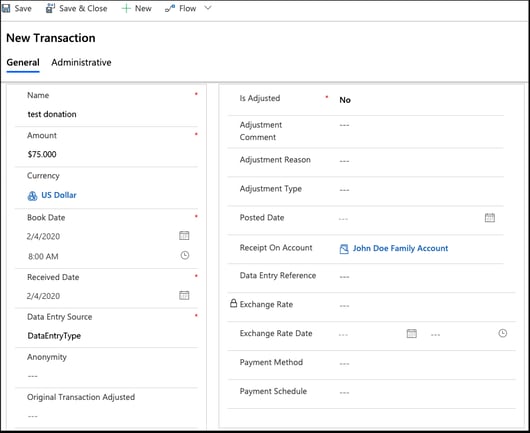
Q: If I use the Power Automate flow to establish my connection, what contact information is pushed into Double the Donation Matching?
A: The receipt is associated with an account. The account has a primary contact. Double the Donation Matching will use the primary contact’s information. The following image provides an example.
Q: If I’m using another platform with Microsoft Dynamics 365, what should I do to make sure I don’t end up with duplicate donations in Double the Donation Matching?
A: Double the Donation Matching is well-suited to help you manage this configuration. We recommend reviewing this article for best practices in managing multiple integrations. Specifically, we recommend activating the Duplicate Donations exclusion rule for multiple integrations, which you can learn more about here.
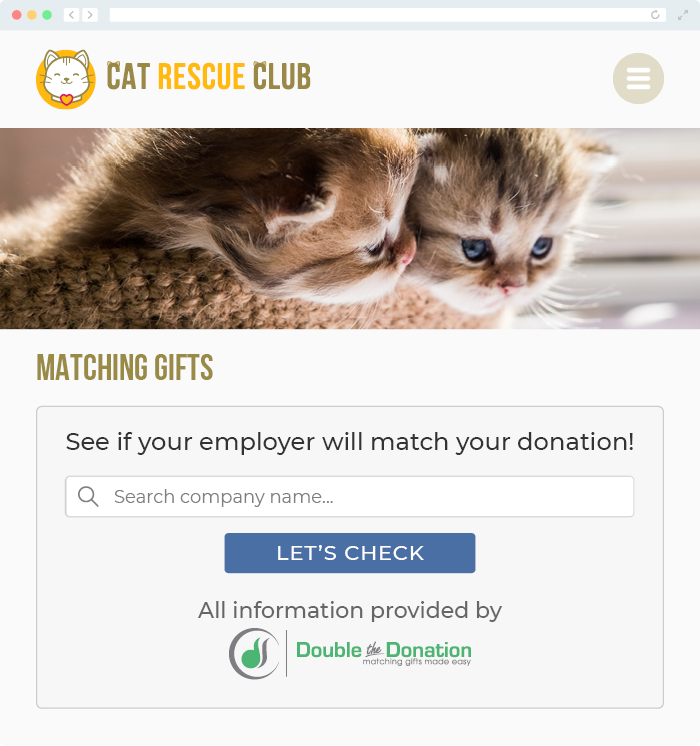
Q: Where else can I embed Double the Donation's plugin?
A: We recommend creating a dedicated matching gift page on your website. This page will help all website visitors, not just those on your donation form, understand matching gift programs and easily find their company’s matching gift guidelines and forms.
To embed the matching gift search tool, locate your embed code from your matching module. Full instructions are available here.
Q: Where can I learn more about the Double the Donation Matching and Microsoft Dynamics 365 integration?
A: Navigate to our partner landing page to learn how Double the Donation Matching and Microsoft Dynamics 365 can increase your matching gift revenue!
Q: What types of workplace giving programs does Double the Donation support?
A: Yes. Double the Donation helps nonprofits and schools maximize workplace giving by supporting a range of employer-sponsored programs, including:
- Matching gifts
- Volunteer grants and paid volunteer time off (VTO)
- Payroll giving
- Corporate sponsorship opportunities
To learn more:
- Current clients can visit our Knowledge Base or connect directly with our Support team to explore how to make the most of our full suite of products.
- To see how our partnerships and integrations help organizations unlock more workplace giving, check out our workplace giving integrations page.