
Step-by-Step: Integrate Double the Donation Matching with Twilio
Step-by-Step: Integrate Double the Donation Matching with Twilio
This integration is currently only available for nonprofits using Double the Donation Matching Enterprise. Not on Enterprise? Learn about upgrading here.
Step 1 — Locate the Twilio Integration
-
Log in to your Double the Donation account.
-
Navigate to the Integrations tab in the left-hand menu and select Browse.
-
Use the Browse Partner Directory search bar to search for "Twilio".
-
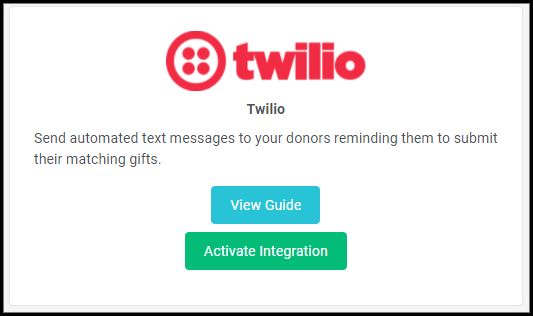
Locate the Twilio card and select Activate Integration.
Step 2 — Authenticate Your Twilio Account
-
Log in to your Twilio account dashboard in a separate window.
-
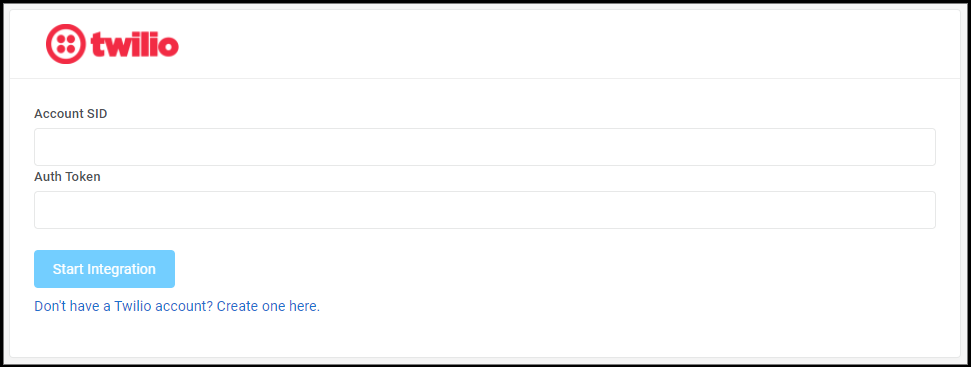
Locate and copy your Account SID and Auth Token.
-
Return to the Double the Donation integration card and paste these credentials into the associated fields.
-
Select Start Integration.
Step 3 — Configure the Sender Number
-
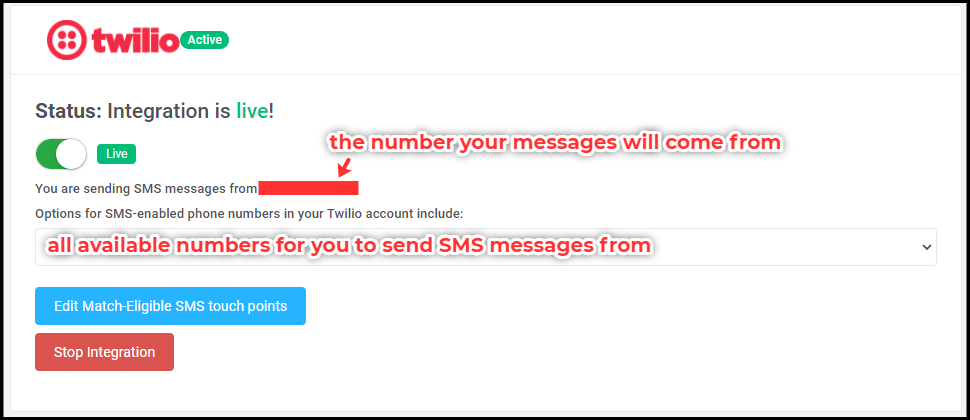
Once authenticated, the integration status will show as "live!".
-
Use the dropdown menu to select the specific SMS-enabled phone number you want your automated messages to come from.
-
This list includes all available numbers currently in your Twilio account.
To learn more about sending automated SMS outreach, view this guide.