
Managing Custom Exclusion Rules
Do not import into the volunteering module
What Exclusion Rules Do
Exclusion Rules allow your organization to prevent specific registration records from:
-
Entering the volunteering module
-
Receiving automated volunteering communications
Exclusion Rules apply only to new registration records entering the system. They do not retroactively update existing records.
Manage Exclusion Rules
Navigate to: Settings → Exclusion Rules
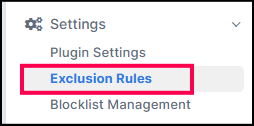
You will build your new exclusion rules in the "Manage Custom Exclusions" card by choosing your field, operator, value, and exclusion action. Ensure you select "Save" when you're done building your rule to apply it.
Once you save your new exclusion rule, it will apply to any new donations that enter the volunteering module afterward. No retroactive action will be taken on existing donations.
Field
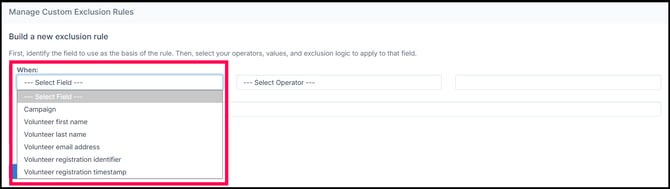
The volunteering module will scan the field you select for the value you input. The dropdown will present you with all first-class fields in the volunteering module as well as any custom fields available in your account.
Operator
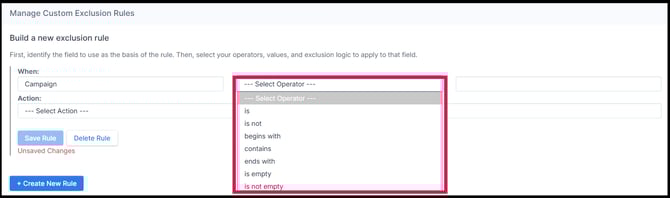
The operator you choose will tell the volunteering module how to apply the value you enter to the field you selected. Below is a sample of available operators. The dropdown will provide you with all the available operators for your exclusion rule, which changes based on the field you provide.
Value
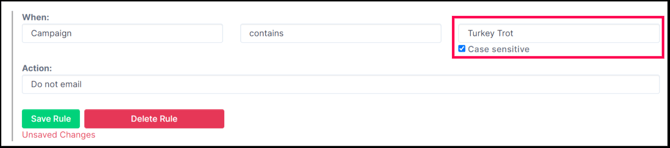
The value field changes depending on the field and operator selected. Examples:
- Strings allow text entry with optional case sensitivity
- Number fields require numeric input
-
Timestamp-based fields allow entry of time units, such as “11 months ago”
See examples of these two scenarios below.

Exclusion Action
What would you like to happen when a record meets your exclusion rule? Select your Exclusion Action from the dropdown.
Available Exclusion Actions are:
-
Do not email: The email address associated with this record will not receive automated volunteering module emails for this registration.
-
Do not import: This record will not be imported into the volunteering module.

Managing Custom Exclusion Rules
After you have created exclusion rules, they will appear in the "Manage Custom Exclusion Rules" card. From here, you can update your rules and save your changes, or you can delete rules.

Exclusion Rules in Action
When a record meets exclusion criteria, your selected exclusion action will be applied to that registration. Different applicable notifications will be added based on the exclusion action you applied.
Do not email
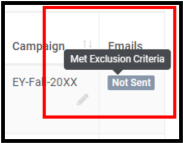
When a record meets a "Do not email" exclusion criteria, a "Not Sent" flag will be added in the Email column of the Donations tab for the applicable donation. If you hover over the flag, the reason -- "Met Exclusion Criteria" -- will appear in a tooltip. The volunteer will not be added to the block list.
Do not import into the volunteering module
Records that meet the exclusion rule will not flow into the volunteering module. The record will not appear within the volunteering module and automated emails will not be generated. We only recommend using this exclusion action in very specific situations, as it can complicate testing.
Note that for debugging purposes, the registration ID and timestamp for all records that meet this exclusion criteria will be logged by Double the Donation.
Q: Does the “Do not email” exclusion action apply to manual outreach emails as well?
A: Yes. If a registration record meets an exclusion rule where the action is set to “Do not email”, both automated and manual outreach emails will not be sent.