Exporting disbursement reports from Benevity Causes Portal
Log into your Benevity Causes Portal to download relevant reports. You can download multiple reports at once.
For details, please reference the Benevity Nonprofit Help Centre.
Importing a Benevity report into Double the Donation
-
Log into your Double the Donation account at https://doublethedonation.com/members/.
-
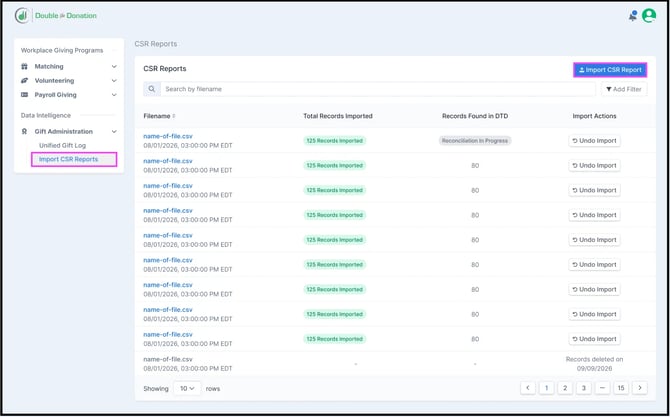
In the left-hand menu, navigate to “Import CSR Reports” under the Gift Administration section. Select “Import CSR Report”.
-
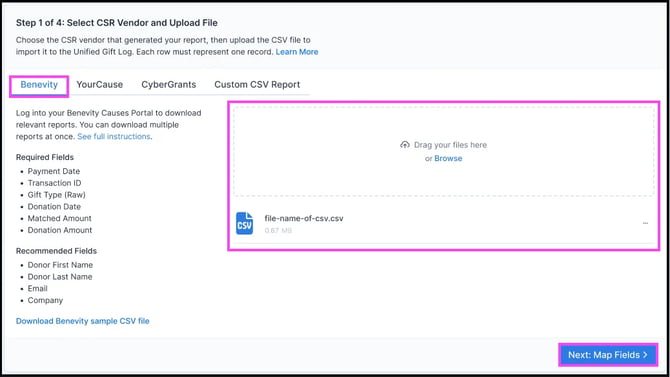
Select the “Benevity” tab, drag and drop your file into the upload area, and click “Next: Map Fields.”
-
The Benevity preset automatically maps the standard fields in your report to their corresponding fields within Double the Donation. If you need to customize this setup, you can easily choose to re-map fields as needed.
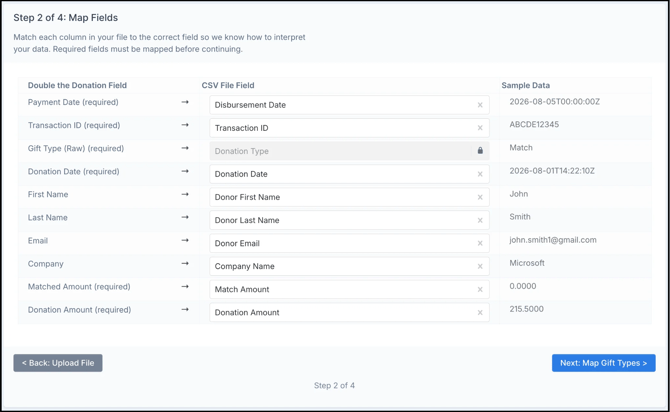
During Benevity imports, the Gift Type (Raw) field is intentionally locked to "Donation Type." This guarantees the system can accurately standardize and map your gift type values without any errors.
-
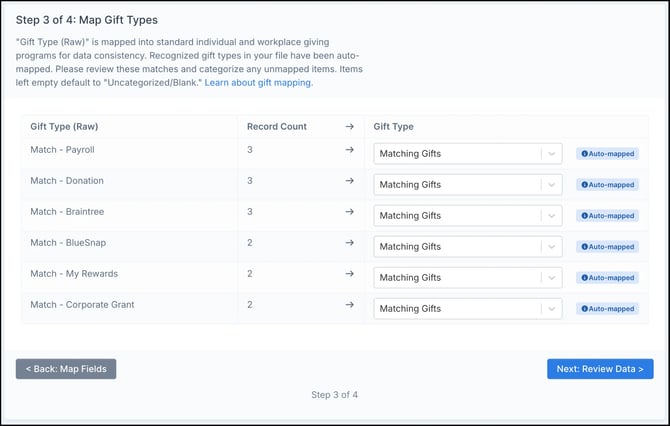
The system will identify and group the individual transactions from your Benevity report into Standardized Gift Types (learn more about gift type mapping). Recognized values are mapped automatically, but you are free to edit these selections or manually map any unrecognized values.
-
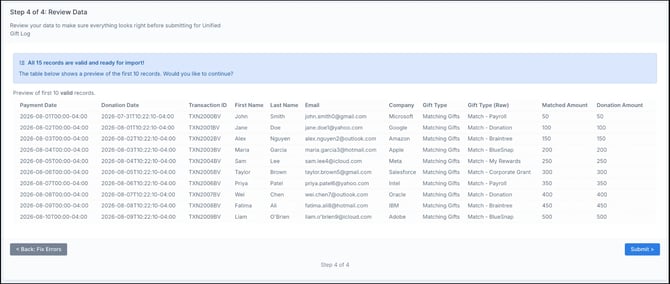
You will be presented with a preview of the first ten rows of your data. Ensure everything appears as expected before moving to the next step. Complete the import process.
-
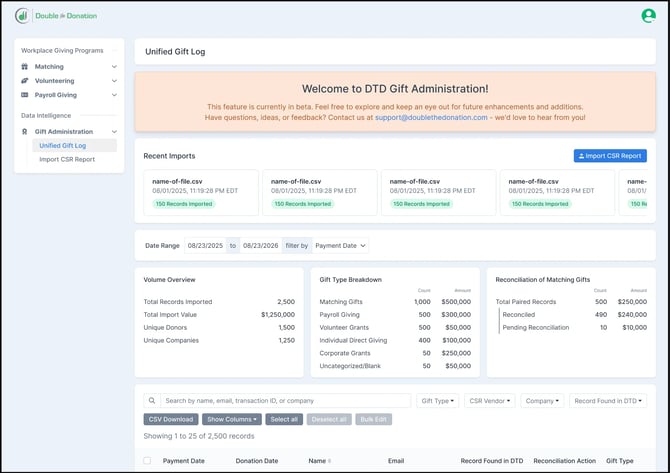
Once the Benevity import is complete, you will see a summary of your results, including total volume and a gift type breakdown. The system will then begin identifying existing donation records to pair with your Matching Gifts. This pairing process takes time, so please check back later.
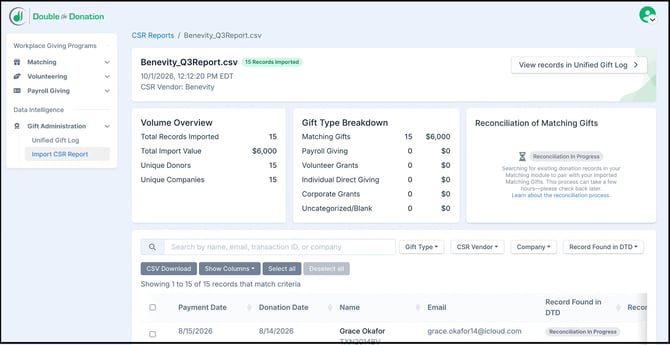
View this article for step-by-step instructions on how to reconcile records.
-
All imported files and data—including Benevity, CyberGrants, YourCause, and custom files—will appear in the Unified Gift Log. From there, you can sort, filter, search, and approve reconciliations for relevant records.