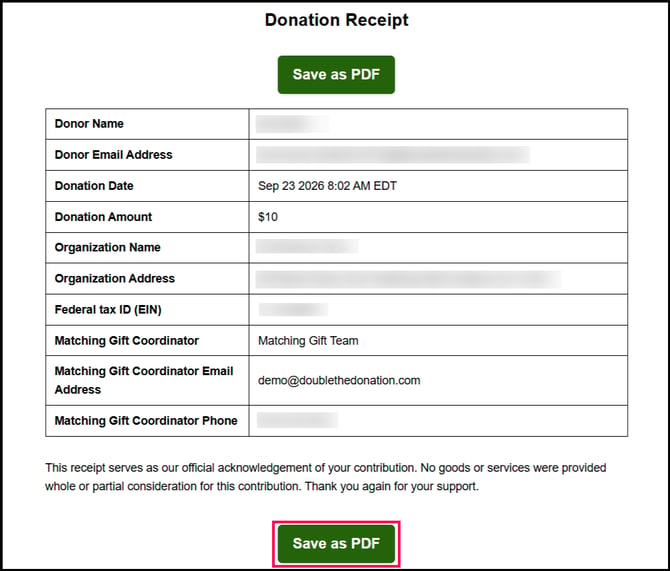
Overview of Hosted Receipts
When donors open a receipt link, they are directed to a secure, Double the Donation-hosted web page featuring:
- Transaction Summary Details: Clear breakdown of donation amount, date, and core transaction metadata.
- Nonprofit Metadata & Messaging: Your organization's details alongside custom acknowledgment copy.
- On-Demand Download: A Download PDF Receipt button allowing donors to generate and save an official PDF record.
Configuring Custom Receipt Messaging
You can personalize the footer and acknowledgment copy displayed on the web and PDF receipt landing page.
- Log into your Double the Donation account.
- Under the Account Information dropdown, navigate to Organization Profile.
- Locate the Custom Receipt Message text area.
- Enter your custom acknowledgment text, tax statement, or footer details.
- Click Save Settings.
Click here to learn more about the Organization Profile tab.
Note: If no custom message is configured, the system will automatically populate default acknowledgment text provided by Double the Donation.
Default text: "This receipt serves as our official acknowledgement of your contribution. No goods or services were provided whole or partial consideration for this contribution. Thank you again for your support."
Adding Receipt Links to Automated Emails
To include the dynamic receipt link within your outgoing automated matching gift messages:
- In the Matching navigation menu, go to Automated Outreach.
- Select the email template you want to modify (e.g., Match Eligible stream templates).
- Place your cursor in the template body where you want the link to appear.
- In the merge variable dropdown menu, select {{receipt_link}} (or manually type {{receipt_link}}).
- Click Save Email Template at the bottom of the page.
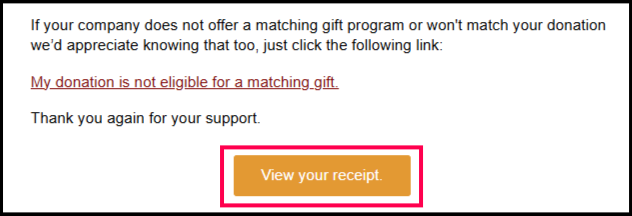
When sent, {{receipt_link}} renders as a hyperlink leading directly to the donor's personalized web and PDF receipt.