
How to Create a Custom Template
Using Email Template Variables
What Is Manual Outreach?
How Automated Outreach Works First
When a volunteer record flows into Double the Donation:
-
It enters Automated Outreach
-
Automated emails run for up to 30 days (based on your settings)
-
These emails aim to:
-
Identify whether the volunteer works for a company offering volunteer incentives
-
Encourage the volunteer to check for corporate volunteer grants or PTO programs
-
Provide guidance on next steps for submission
-
Automated outreach handles early-stage engagement.
When Manual Outreach Begins
Once automated emails stop, you can use Manual Outreach to send additional follow-up messages.
Manual emails can be sent:
-
To a single volunteer
-
To multiple volunteers at once (bulk send)
Manual outreach is especially useful for:
-
End-of-campaign reminders
-
Giving Tuesday follow-ups
-
Event-based volunteer drives
-
Volunteers who showed engagement but did not complete submission
Custom Email Templates
Manual Outreach allows you to create and save custom templates for targeted communications.
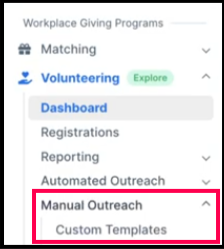
Templates are located under: Manual Outreach → Custom Templates → Create New Template
Why Use Custom Templates?
Custom templates allow you to:
-
Send bulk messages efficiently
-
Tailor outreach to specific campaigns or events
-
Reinforce urgency (e.g., end-of-quarter reminders)
-
Maintain consistent branding and messaging
You can create templates for:
-
Volunteer grant reminders
-
PTO submission reminders
-
Post-event follow-ups
-
Corporate-specific messaging
How to Create a Custom Template
Follow these steps:
-
Name the template
-
Create the subject line
-
Write the email body
-
Insert email template variables (optional but recommended)
-
Click Save Email Template
-
Use the Preview button to confirm formatting and personalization before sending
Always preview before bulk sending.
Using Email Template Variables
Email template variables allow you to automatically insert volunteer-specific details into emails.
This ensures personalization without manual editing.
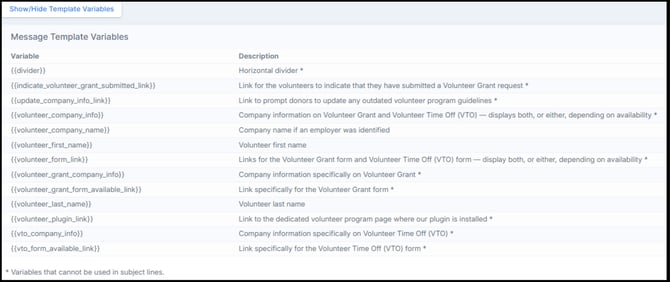
Any email variable without an asterisk next to it can be used in the subject line.