
Nonprofit Success Pack users can follow this link to read instructions for establishing their connection.
Step-by-Step: Activating the Integration between Double the Donation Matching and Salesforce
Step-by-Step: Mapping Fields between Double the Donation Matching and Salesforce
Step-by-Step: Sync Matching Gift Data from Double the Donation Matching to Salesforce
Salesforce - Troubleshooting Common Issues
Salesforce - Double the Donation FAQs
Double the Donation is the industry-leading matching gifts automation solution for nonprofits and educational institutions to identify more matching gift revenue opportunities and drive more matches to completion. You’ll need a Double the Donation account to activate the matching gift functionality within this partner platform. Not a Double the Donation client? Schedule a demo at https://doublethedonation.com/demo-request/.
What do these steps do? By activating the integration between Double the Donation Matching and Salesforce, you enable data to flow from Salesforce into Double the Donation Matching. Once gifts are flowing from Salesforce to the matching module, Double the Donation Matching can go to work identifying corporate matching gift opportunities and driving those matching gift opportunities to completion to bring in more fundraising revenue for your organization.
Step-by-Step: Activating the Integration between Double the Donation Matching and Salesforce
Ready to raise more with the Salesforce Nonprofit Cloud + Double the Donation integration? Activate the integration by following this video walkthrough.
Step 1 — Install the Salesforce App
-
Navigate to the Double the Donation app on the Salesforce AppExchange, linked here.
-
Select Get it Now and follow the installation wizard prompts.
-
When prompted, it is recommended to select the option to Install for Admins Only.
Step 2 — Authorize the Connection
-
Log in to your Double the Donation account at https://doublethedonation.com/members/.
-
Navigate to the Integrations tab and select Browse.
-
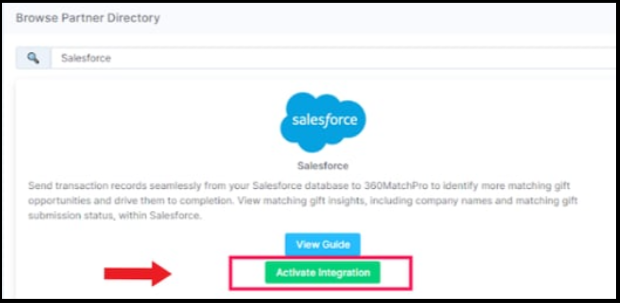
Search for Salesforce in the Partner Directory and select Activate Integration, then Sign in with Salesforce.
-
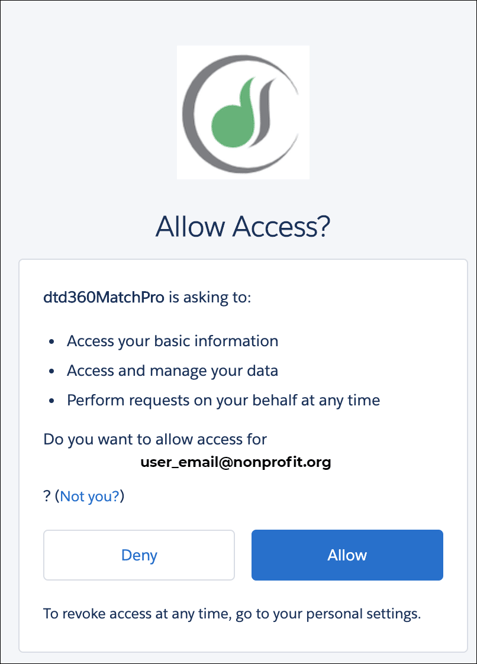
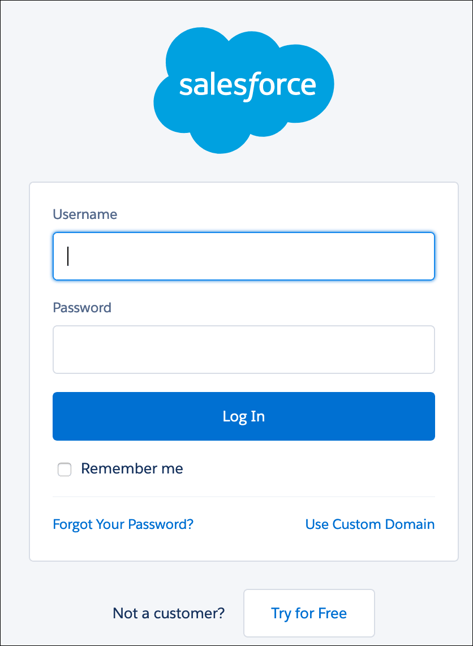
You will be redirected to Salesforce; enter your credentials and select Allow to grant access.
Step-by-Step: Mapping Fields between Double the Donation Matching and Salesforce
Field Mapping: Nonprofit Cloud (NPC) Fundraising Data Model
Follow these instructions if your organization uses the Nonprofit Cloud Fundraising Data Model, and you do not want to customize your data flow. If your organization plans to add custom inclusions and exclusions, follow the setup steps for Custom Data Mapping below.
Step 1 — Apply Default NPC Configuration
-
Within Double the Donation, go to Integrations → Manage → Salesforce.
-
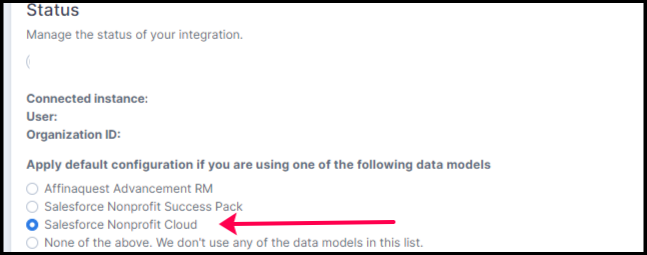
Locate the section Apply default configuration if you are using one of the following data models.
-
Select the Salesforce Nonprofit Cloud option.
Step 2 — Automated Data Flow
-
Once the configuration is applied, your integration is complete.
-
Donation data will automatically flow from Salesforce to Double the Donation every 2 hours.
-
If your organization uses NPSP or your own unique data schema, follow these instructions.
Step-by-Step: Configuring Exclusions and Inclusions with your Double the Donation Matching and Salesforce Data Flow
What Do Exclusions and Inclusions Do?
Salesforce data structures often include edge cases that don’t follow your organization’s standard rules. Exclusions and Inclusions allow you to refine how donation records are imported into Double the Donation Matching, ensuring:
-
Clean, accurate data transfer
-
Correct donor communications
-
Improved data hygiene
How the Logic Works
-
Exclusions: Records that meet any exclusion criteria will not be imported.
-
Inclusions: Records that meet any inclusion criteria will always be imported.
This logic ensures that exceptions are handled consistently without manual intervention.
Step 1 — Access Salesforce Integration Settings
-
Log in to your Double the Donation Matching account.
-
Navigate to Integrations → Manage → Salesforce.
-
Select Add Exclusion.

Step 2 — Select the Field Path
-
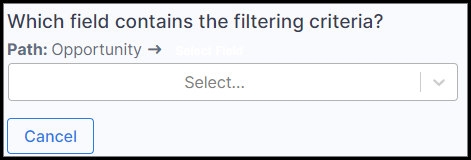
Identify the Salesforce field that will serve as the basis of the exclusion.
-
Create a field path by selecting related objects until you reach a primitive data type (e.g., text, number, boolean).
Step 3 — Confirm the Field
-
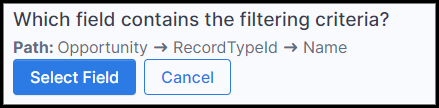
Click Select Field to confirm your chosen data path.
Step 4 — Define Exclusion Values
-
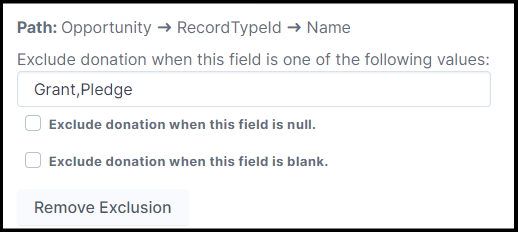
Enter the value(s) that should trigger exclusion.
Example:
If the selected field is Record Type, and the values entered are:
-
Grant -
Pledge
Then Double the Donation Matching will not import any donation records with those record types.
Adding Inclusions
-
Inclusions are added using the same process as Exclusions.
-
Instead of blocking records, inclusion rules guarantee that qualifying records are imported.
Sync Matching Gift Data: Nonprofit Cloud Fundraising Data Model Users
Step 1 — Open Salesforce Integration Settings
-
Navigate to Integrations → Manage → Salesforce in Double the Donation Matching.
Step 2 — Enable Matching Gift Opportunity Creation
-
Under Sync Options, select the checkbox to:
-
Create a matching gift opportunity record in Salesforce
-
Follow the business logic configured in Promise Creation settings
-

Step 3 — Enable Promise Creation
-
In your matching module, navigate to:
-
Settings → Promise Creation
-
-
Ensure the setting is Enabled.

What Happens Next
Once enabled:
-
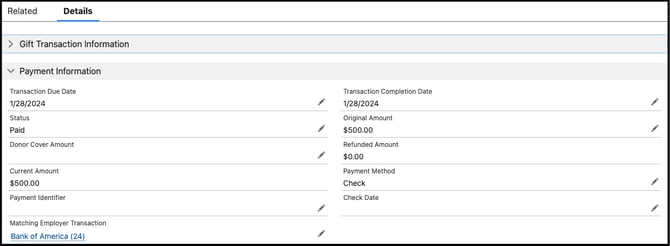
A matching gift object will be created if one does not already exist
-
The matching gift will be linked to the original gift
-
The employer’s name will appear on the matching gift object
Salesforce - Troubleshooting Common Issues
Problem: “Access Denied” Error During Salesforce Connection
Issue: When attempting to connect Salesforce within Double the Donation Matching, you receive an “Access denied” error.
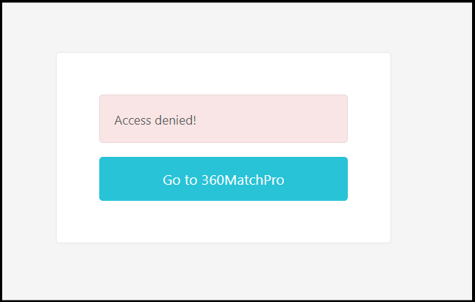
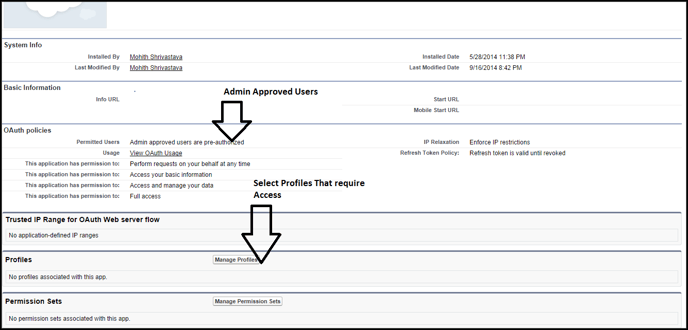
Cause: The Salesforce user is not configured as an admin-approved user for the connected app.
Solution
-
In Salesforce, navigate to the connected app configuration.
-
Select Manage Profiles.
-
Add System Administrators to Admin Approved Users.
Problem: Salesforce Integration Disconnects After Staff Changes
Issue: The integration disconnects when the user who originally set it up leaves the organization.

Cause: The integration is tied to an individual user account.
Solution
-
Use a general user profile (e.g.,
donations@yourorg.org) to reconnect. -
Reset the integration:
-
Navigate to Integrations → Manage → Remove Integration
-
-
Reconnect Salesforce following the instructions here.
Salesforce - Double the Donation FAQs
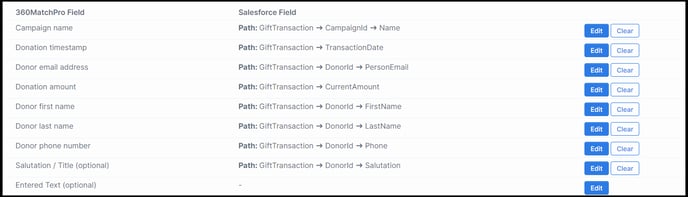
Q: How are the fields mapped for the Nonprofit Cloud Fundraising Data Model integration?
A: We map to the gift transaction object (see below). If you use the NPC Fundraising Data Model but have customized your fields, you can follow the custom mapping integration instructions to connect your Salesforce CRM.
Q: What information passes from Double the Donation Matching to Salesforce in the 2-way data sync?
A: Double the Donation will send the Matching Employer Transaction and Status to Salesforce. If no company has been selected, the field will remain blank in Salesforce. The table below explains how each Double the Donation status will appear in your Salesforce instance:
|
Status in Double the Donation Matching |
Status in Salesforce |
|
Employer Identification in Progress Waiting for Donor Match Initiated Pending Payment |
Pending |
|
Match Complete |
Paid |
|
Closed |
Canceled |
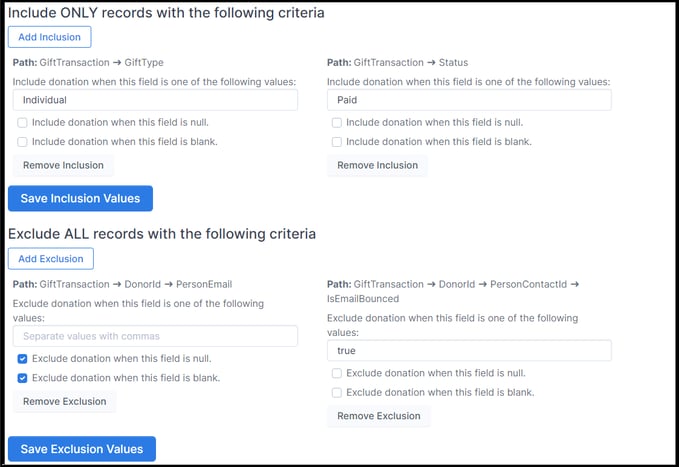
Q: Are there any default inclusions or exclusions when using the NPC integration?
A: Yes! We have a number of default inclusions and exclusions for this integration that are outlined below.
Q: If I'm using another platform with Salesforce, what should I do to make sure I don't end up with duplicate donations in Double the Donation Matching?
A: This is a common combination of integrations! Double the Donation Matching is well-suited to help you manage this configuration. We recommend reviewing this article for best practices in managing multiple integrations. Specifically, we recommend activating the Duplicate Donations exclusion rule for multiple integrations, which you can learn more about here.
Q: Can I preview which records will flow into Double the Donation Matching from Salesforce based on my current integration settings?
A: Yes! You can preview records as they would appear in Double the Donation Matching with the settings you have configured by navigating to Integrations --> Manage --> Preview Records. The records will appear as either Imported, Will Be Imported, or Will Not Import. These are defined below:
- Imported: Record already exists in Double the Donation Matching and is not impacted by setting changes.
- Will Be Imported: Record meets all criteria set for the integration and will be processed in the next sync.
- Will Not Import: Record does not meet the current criteria for the integration and will not be processed in the next sync.
Q: Where can I embed Double the Donation's plugin?
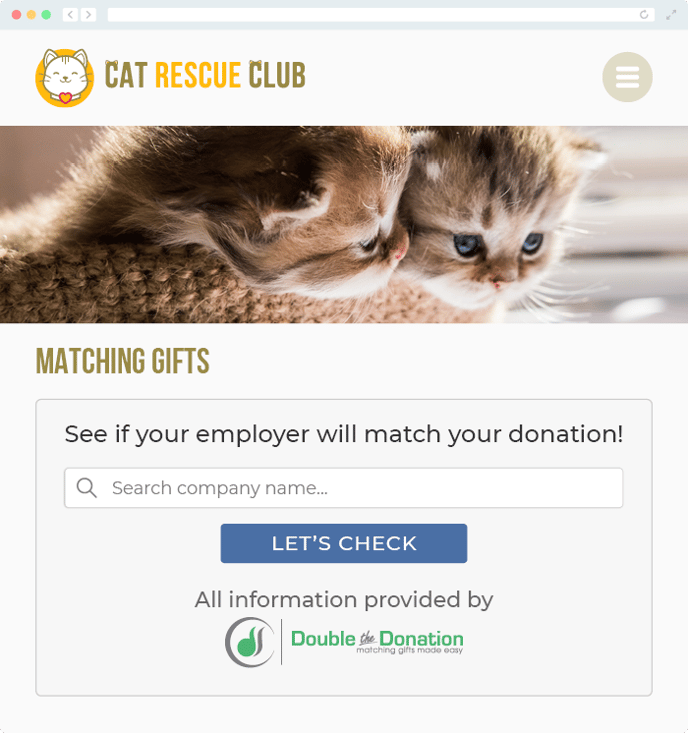
A: We recommend creating a dedicated matching gift page on your website. This page will help all website visitors, not just those on your donation form, understand matching gift programs and easily find their company’s matching gift guidelines and forms.
To embed the matching gift search tool, locate your embed code from your matching module. Full instructions are available here.
Q: Where can I learn more about the Double the Donation and Salesforce integration?
A: Navigate to our partner landing page to learn how Double the Donation Matching and Salesforce can increase your matching gift revenue!
Training Video