
Step-by-Step: Integrate Double the Donation Matching into GiveWP
Step by Step: Integrate Double the Donation Matching into GiveWP 3.0 Forms
Step by Step: Integrate Double the Donation Matching into GiveWP Legacy Forms
GiveWP - Double the Donation FAQs
Double the Donation helps nonprofits and schools grow revenue across workplace giving programs, including matching gifts, volunteer incentives, payroll giving, and corporate sponsorship opportunities. Our workplace giving automation platform identifies eligible opportunities and drives more submissions to completion.
You’ll need a Double the Donation account to activate this integration. Not a Double the Donation client? Schedule a demo at https://doublethedonation.com/get-a-demo/
Step 1 — Download the Plugin
From your WordPress admin:
-
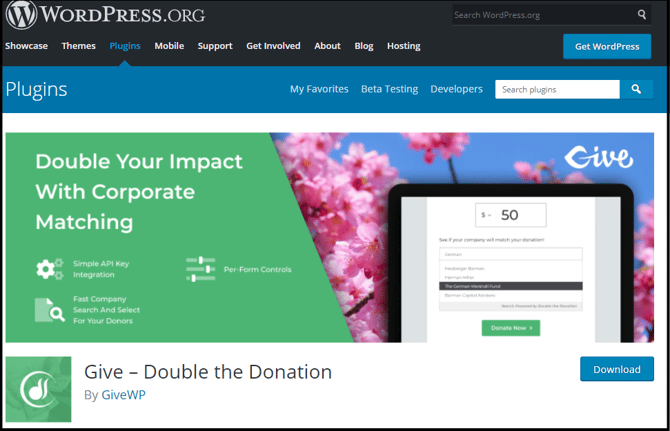
Navigate to Plugins, then search “Give – Double the Donation”,
or -
Download the plugin directly from the WordPress.org repository.
Step 2 — Upload and Activate
-
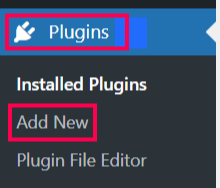
Go to Plugins → Add New.
-
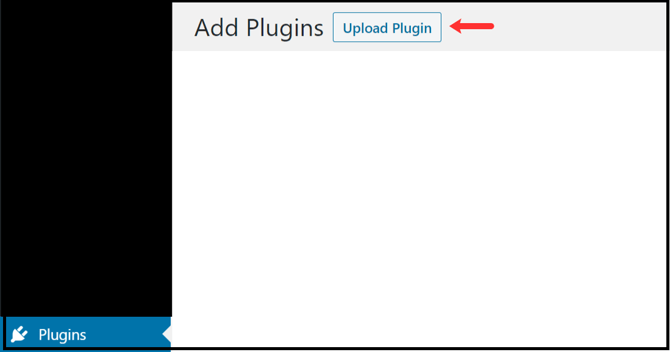
Select Upload Plugin.
-
Upload the ZIP file downloaded in Step 1.
-
Click Install Now, then Activate.
Step 3 — Open Plugin Settings
Once activated:
-
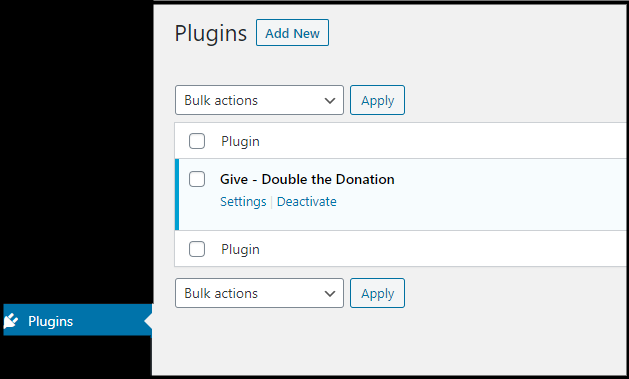
Locate Give – Double the Donation in your Plugins list.

-
Click Settings.
Step 4 — Enter API Keys
-
Paste your Public API Key and Private API Key from Double the Donation → Account Profile Dropdown → API Keys.
-
Not sure how to find your API keys? Check out this article.
-
-
Click Save Changes.
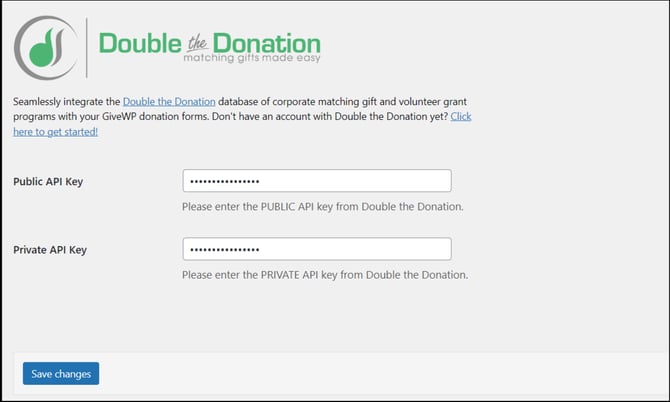
Don't have an account yet? Just select the option to get started and let the Double the Donation team know.
Double the Donation Matching is available on GiveWP 3.0 forms and legacy forms. The steps to activate the integrate each are below.
Step by Step: Integrate Double the Donation Matching into GiveWP 3.0 Forms
Use this section if you are on GiveWP 3.0 with the Visual Donation Form Builder.
Step 5 — Open the Donation Form Builder
-
Navigate to Donations → Forms.
-
Select the form you want to edit.
-
Click Build to open the Visual Builder.
Step 6 — Add the Double the Donation Block
-
In the block search, type Double the Donation.
-
Drag the Double the Donation block into your form.
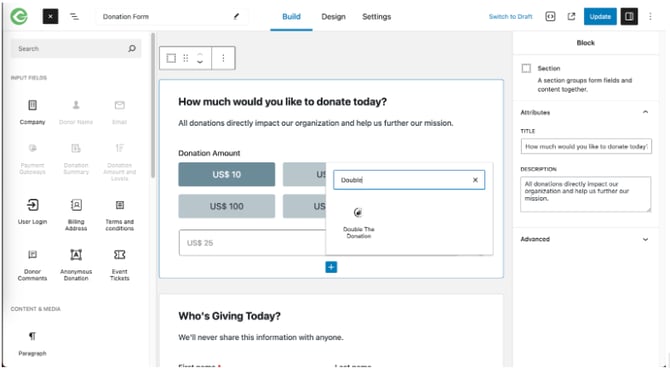
Recommended placement: Near donor contact information (email/name).
Step 7 — Customize the Block
You can adjust:
-
Label (recommended text): “See if your company will match your donation”
-
Advanced settings (optional, for internal documentation)

Result
-
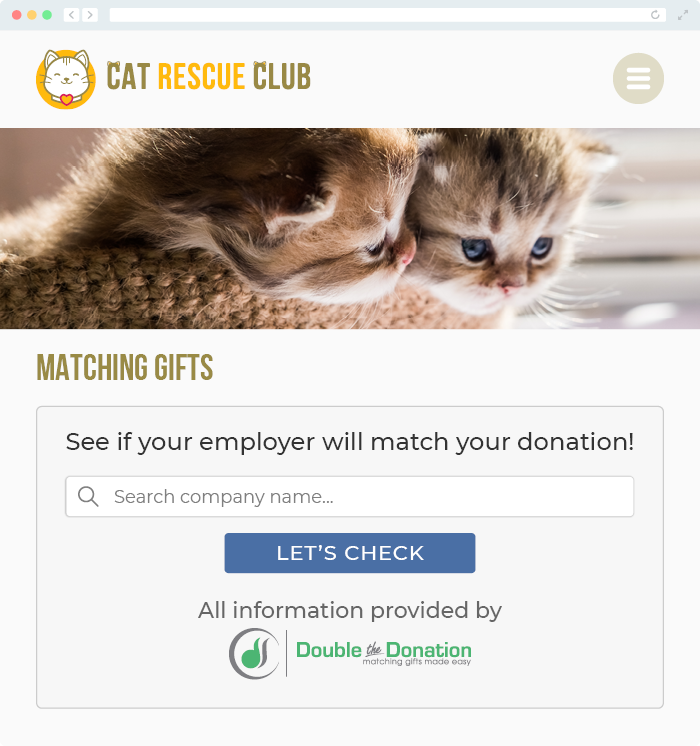
Employer search appears on the live donation form
Step by Step: Integrate Double the Donation Matching into GiveWP Legacy Forms
Use this section if you are using legacy (non-visual) GiveWP forms.
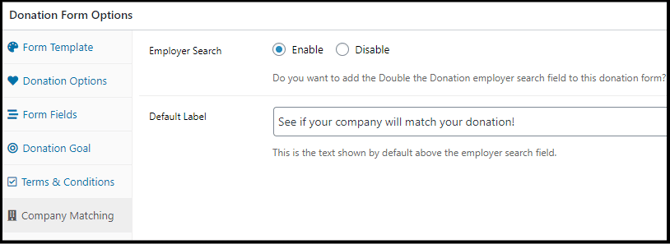
Step 8 — Enable Company Matching
-
Edit your legacy donation form.
-
Open Donation Form Options.
-
Select Company Matching.

-
Choose Enable.
Step 9 — Save the Form
Save changes to publish matching gifts on the form.
Integration Complete
Once configured:
-
Employer search field appears on GiveWP donation forms
-
Donation records sync into Double the Donation Matching
GiveWP - Double the Donation FAQs
Q: I don’t have a Double the Donation account. How do I get one?
A: Visit the Double the Donation demo request page to schedule a demo. Mention that you use Custom Donations in your demo request form.
Q: I'm an existing Double the Donation Matching client. Where do I find my credentials?
A: Log in at https://doublethedonation.com/members/login/ → Account Profile Dropdown → API Keys.
Q: Where can I embed the Double the Donation's plugin?
A: We recommend creating a dedicated matching gift page on your website. This page will help all website visitors, not just those on your donation form, understand matching gift programs and easily find their company’s matching gift guidelines and forms.
To embed the matching gift search tool, locate your embed code from your matching module. Full instructions are available here.
Q: Where can I learn more about the Double the Donation Matching and GiveWP integration?
A: Navigate to our partner landing page to learn how Double the Donation Matching and GiveWP can increase your matching gift revenue!
Q: What types of workplace giving programs does Double the Donation support?
A: Yes. Double the Donation helps nonprofits and schools maximize workplace giving by supporting a range of employer-sponsored programs, including:
- Matching gifts
- Volunteer grants and paid volunteer time off (VTO)
- Payroll giving
- Corporate sponsorship opportunities
To learn more:
- Current clients can visit our Knowledge Base or connect directly with our Support team to explore how to make the most of our full suite of products.
- To see how our partnerships and integrations help organizations unlock more workplace giving, check out our workplace giving integrations page