
Phase 1: Activating Double the Donation Matching in Firespring
Phase 2: Adding/Removing Double the Donation Matching on Individual Forms
Adding Double the Donation’s Matching Gift/Volunteer Plugin to your Firespring Pages
Firespring - Double the Donation FAQs
Double the Donation helps nonprofits and schools grow revenue across workplace giving programs, including matching gifts, volunteer incentives, payroll giving, and corporate sponsorship opportunities. Our workplace giving automation platform identifies eligible opportunities and drives more submissions to completion.
You’ll need a Double the Donation account to activate this integration. Not a Double the Donation client? Schedule a demo at https://doublethedonation.com/get-a-demo/
Phase 1: Activating Double the Donation Matching in Firespring
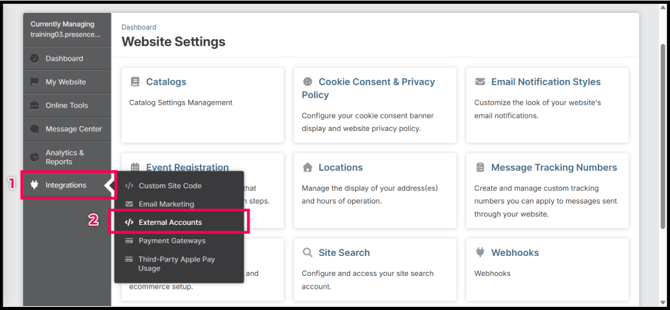
Step #1: On your Firespring account, go to “Integrations” and click “External Accounts”
Step #2: Click “Add External Account”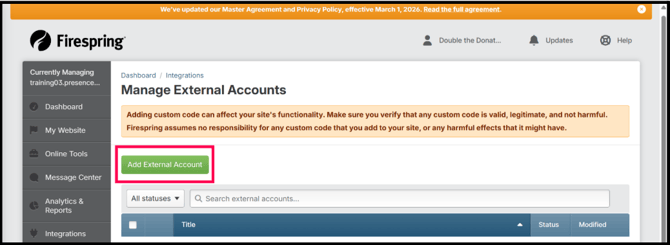
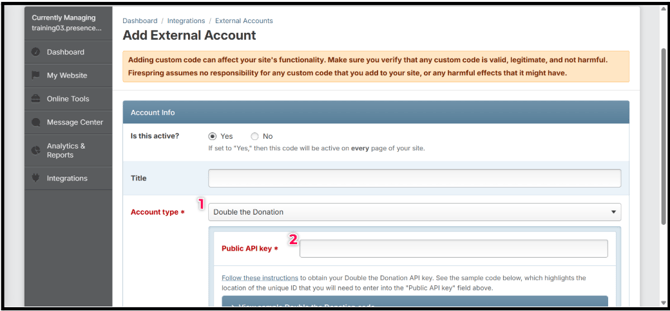
Step #3: Under Account type, find “Double the Donation,” and enter your Public API key in the space provided.
Note: Make sure “Is this active?” is set to “Yes,” so you have the option to add Double the Donation to every page of your site.
Not sure how to find your API keys? Check out this article.
Phase 2: Adding/Removing Double the Donation Matching on Individual Forms
Step #1: Under Website Management, go to the page where your donation form is located.
Step #2: Within Form Header/Settings, click Edit
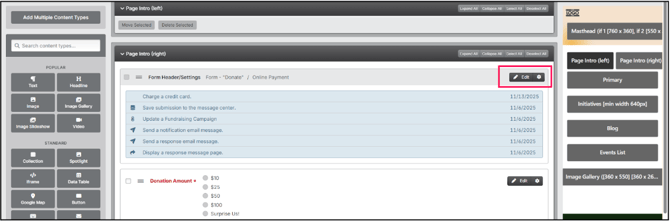
Step #3: Under Payment Gateway, make sure “Allow Double the Donation?” is set to “Yes” to enable the integration on the donation form.
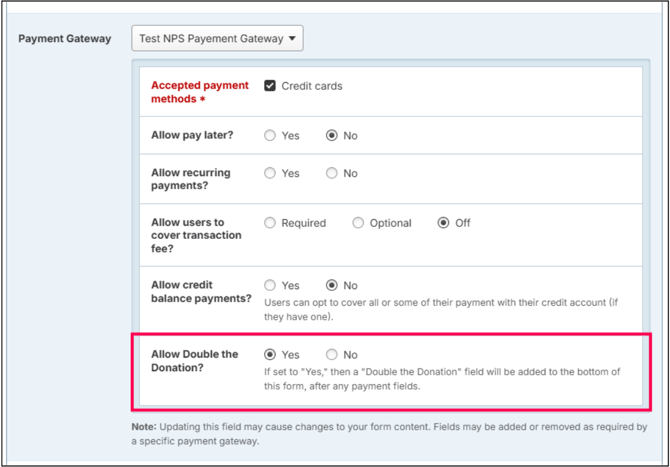
Congratulations! Double the Donation Matching tools will now appear on your Firespring forms and donation records will begin flowing into your matching module.
Adding Double the Donation’s Matching Gift/Volunteer Plugin to your Firespring Pages
Step #1: Log in to your Firespring account and go to “Website Management.”
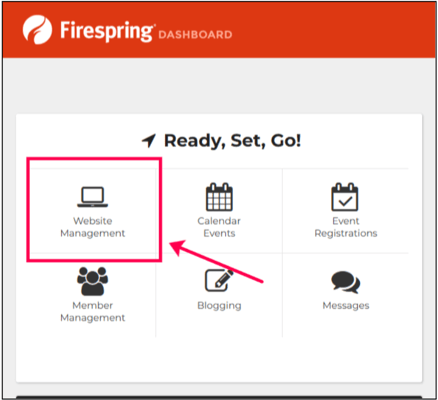
Step #2: On the left, under the “Standard” content section, find “Third-Party Embed” and drag and drop to your desired location on the page.
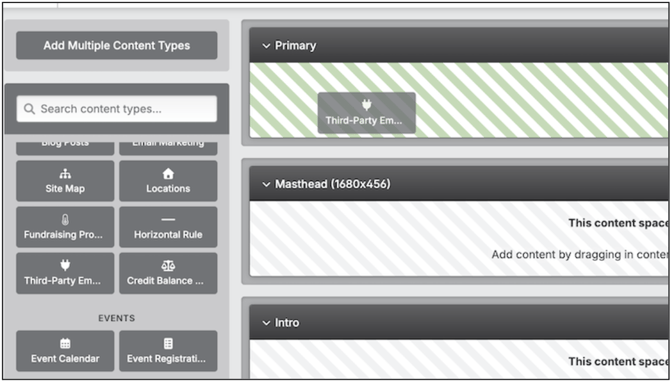
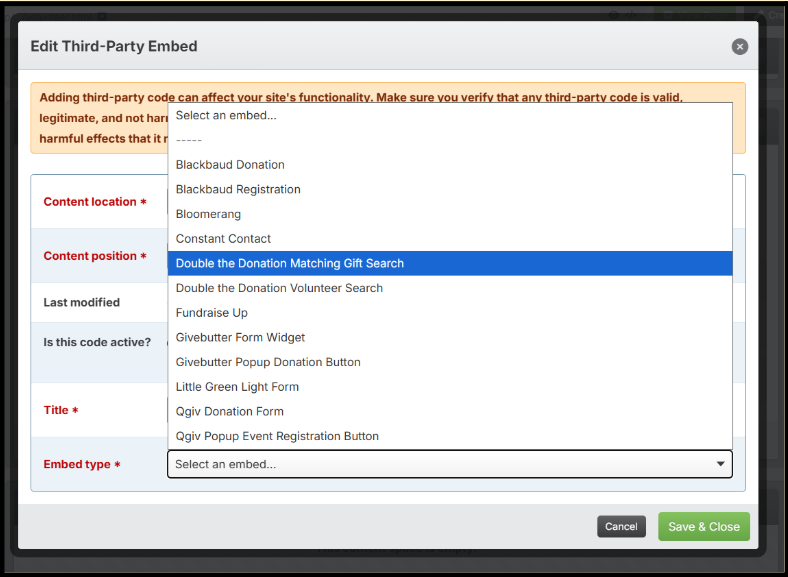
Step #3: In the dropdown menu for Embed type, choose between “Double the Donation Matching Gift Search” and “Double the Donation Volunteer Search.” Make sure “Is this code active?” is set to Yes, then click “Save & Close”
Firespring - Double the Donation FAQs
Q: I don't have a Double the Donation Matching account. How do I get one?
A: Visit https://doublethedonation.com/demo-request/ to request a demo. Make sure you mention that you use Firespring in your demo request form!
Q: Where else can I embed Double the Donation's plugin?
A: We recommend you create a dedicated matching gift page on your website to place matching gift information in the path of every website visitor, not just those already on your donation form. On this page, you can explain what matching gift programs are and provide donors with a chance to look up their employer’s program forms, guidelines, and instructions. Your dedicated matching gift page will become a useful resource to include in emails, newsletters, and direct messages.
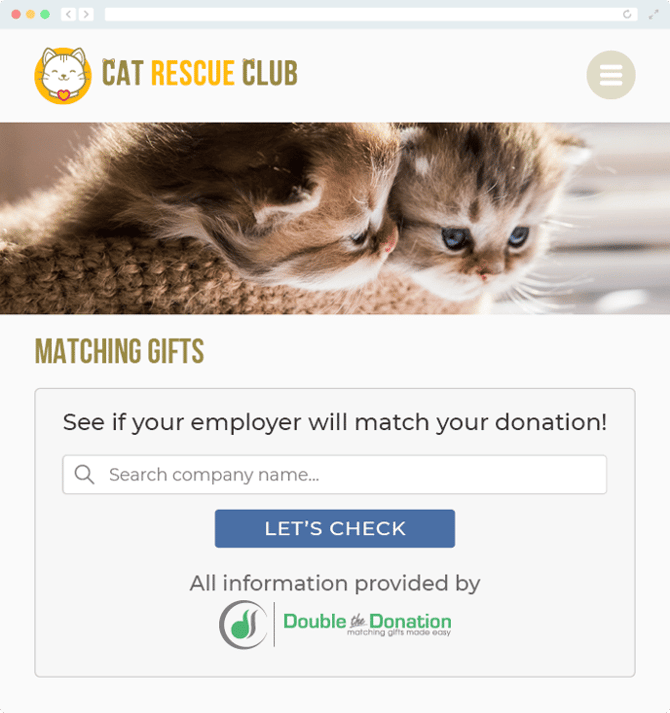
To install Double the Donation’s matching gift search tool anywhere on your website, simply follow the steps above. Take a look at the following example:
Q: What types of workplace giving programs does Double the Donation support?
A: Yes. Double the Donation helps nonprofits and schools maximize workplace giving by supporting a range of employer-sponsored programs, including:
- Matching gifts
- Volunteer grants and paid volunteer time off (VTO)
- Payroll giving
- Corporate sponsorship opportunities
To learn more:
- Current clients can visit our Knowledge Base or connect directly with our Support team to explore how to make the most of our full suite of products.
- To see how our partnerships and integrations help organizations unlock more workplace giving, check out our workplace giving integrations page.