
Adding Custom Fields to the matching module
Custom Fields in the Donations Tab
Custom Fields as Email Variables
Custom Fields in Exclusion Rules
What Are Custom Fields?
Custom fields are user-defined fields that can be added to donation records in the Double the Donation matching module. Fully customizable on a per-account basis, they are not predefined in the system and can store any string of data — making them ideal for capturing organization-specific information not covered by standard fields.
Key Points:
-
No Character Limit: Custom fields can store any amount of data.
-
Flat Structure: Custom fields cannot be nested into more levels.
-
Usage Limitations: Custom fields are added via integrations or custom APIs and cannot be manually added through the matching module or CSV uploads.
Adding Custom Fields to the Matching Module
Custom fields can be added to the matching module donation records via integrations or a custom API.
How to Add Custom Fields:
-
Integration Support: Some platform integrations support the creation of custom fields. Refer to specific integration guides for details.
-
Enterprise Clients: If you're a Double the Donation Matching Enterprise client, you can work with your Client Success team to create custom fields.
For more information on upgrading to Double the Donation Matching's Enterprise version, check this resource.
Custom Fields in the Donations Tab
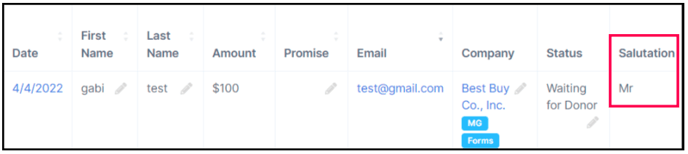
Once added, custom fields will appear as new columns in the Donations tab in the matching module.
How to View Custom Fields:
-
Click the Show Columns dropdown in the Donations tab.

-
Select the custom field columns to display.
-
These fields will appear in the CSV files you download using the CSV Download button. Only records with populated custom fields will include data for these fields in the CSV.

Custom Fields as Email Variables
Custom fields can be used as dynamic email variables, allowing you to personalize automated donor communications with organization-specific data.
How to Use Custom Fields as Variables:
-
Scroll to the bottom of the Email Variables table in the Automated Outreach tabs.
-
Custom fields will appear with "Custom field" in the Description column. For example, “Salutation” might be listed as a custom field.

To learn more about email variables, read this article.
Custom Fields in Exclusion Rules
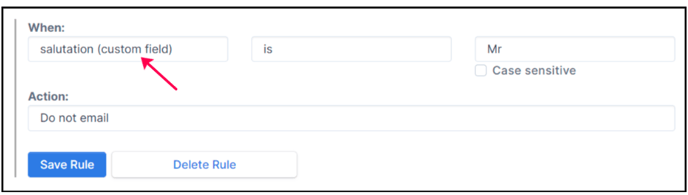
Custom fields can also be used to define exclusion rules, allowing you to automatically suppress or filter donor communications based on the values stored in those fields.
How to Use Custom Fields in Exclusion Rules:
-
Select the custom field from the first dropdown in the Exclusion Rules section.
-
Custom fields will appear with (custom field) next to the field name in the dropdown.
Learn more about exclusion rules here.
Custom Fields FAQs
Q: How can I add custom fields to my matching module donation records?
A: Custom fields can only be added through platform integrations or a custom API. For integration-based setup, refer to the platform-specific integration guides. If you are implementing custom APIs, contact your Client Success team at support@doublethedonation.com for assistance.
Q: Will values in custom fields appear in CSV downloads?
A: Yes. Custom field values will appear as individual columns in CSV exports downloaded from the Donations tab. Note that only records with populated custom field values will include data for those columns. Custom field data is also accessible via API endpoints when fetching donation records.